Setting up a Wireless Network at Home: A Step-by-Step Guide
Are you tired of dealing with a slow or unreliable internet connection at home? Setting up a wireless network at home can seem like a daunting task, but it's easier than you think. With the right equipment and a little patience, you can have a reliable and fast Wi-Fi network up and running in no time.
Understanding the Essential Components
Before we dive into the setup process, let's take a look at the essential components you'll need to create a wireless network at home. These include:
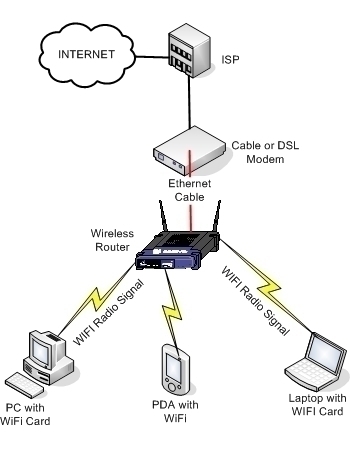
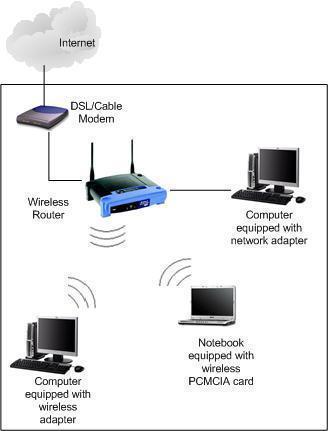
- Modem: This is the device that connects your home internet to the internet service provider. It's usually provided by your ISP (Internet Service Provider).
- Wi-Fi Router: This device connects to the modem and redistributes the internet signal to all devices in your home via Wi-Fi or wired connections.
- Devices: This can include laptops, smartphones, tablets, smart home devices, and more.
Setting up the Modem and Router
Once you have all the necessary equipment, let's move on to setting up the modem and router. Here's a step-by-step guide:
Step 1: Connect the Modem to the Wall Outlet
First, connect the modem to a power outlet and let it boot up. Make sure it's properly connected and the lights are on.
Step 2: Connect the Router to the Modem
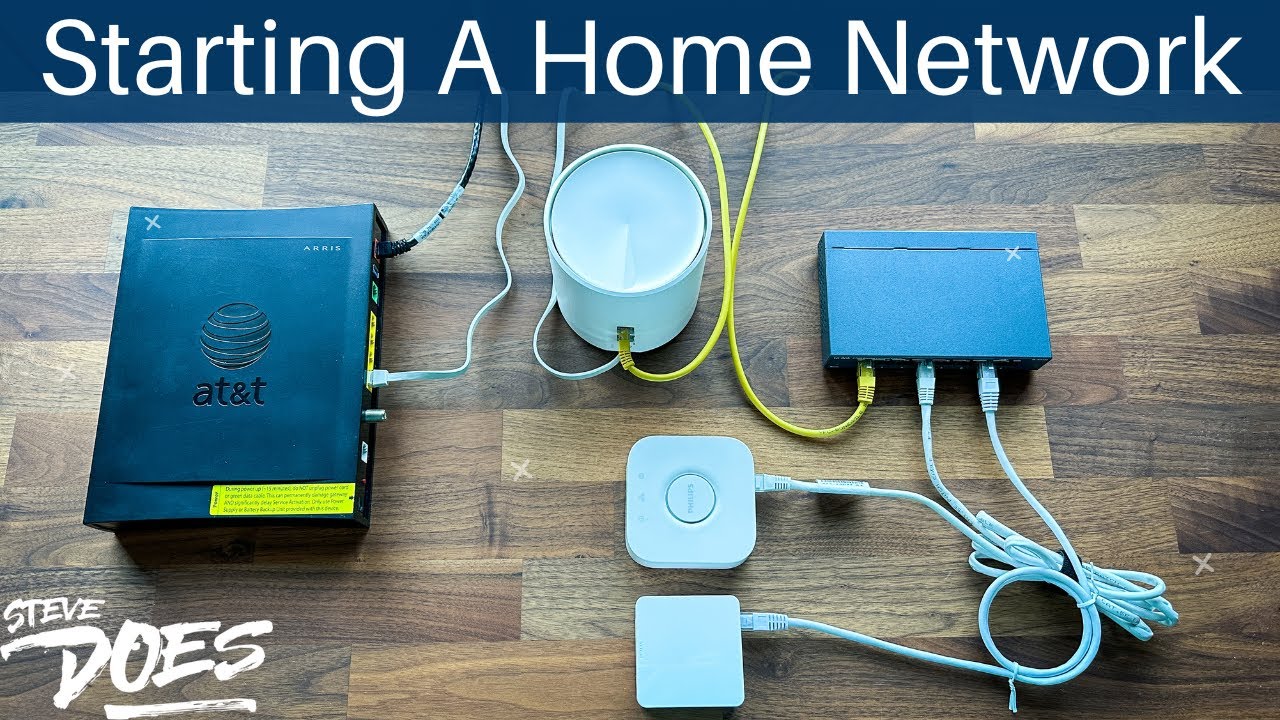
Next, connect the router to the modem using an Ethernet cable. This will help you establish a wired connection between the two devices.
Step 3: Configure the Router Settings
Step 4: Update the Router Firmware (Optional)
If you're using an older router, it's a good idea to update the firmware to ensure you have the latest security patches and features. Check your router's manufacturer website for instructions on how to update the firmware.
Step 5: Set Up the Wi-Fi Network
Now, it's time to set up the Wi-Fi network. You'll need to create a network name (SSID) and password. Make sure to choose a secure password and avoid using default usernames and passwords.
Security Considerations
Securing your Wi-Fi network at home is crucial to protect your personal data and prevent unauthorized access. Here are some security considerations:
Use a Strong Password: Avoid using default passwords and choose a strong and unique password for your Wi-Fi network.

Use WPA2 or WPA3 Encryption: These are the most secure encryption protocols available for Wi-Fi networks.
Change the Default Channel: Changing the default channel can help reduce interference from neighboring networks.
Use a VPN: A Virtual Private Network (VPN) can encrypt your internet traffic and protect your data while using public Wi-Fi networks.
Securing Your Home Wi-Fi Network
To secure your home Wi-Fi network, you need to take additional precautions. Here are some tips:
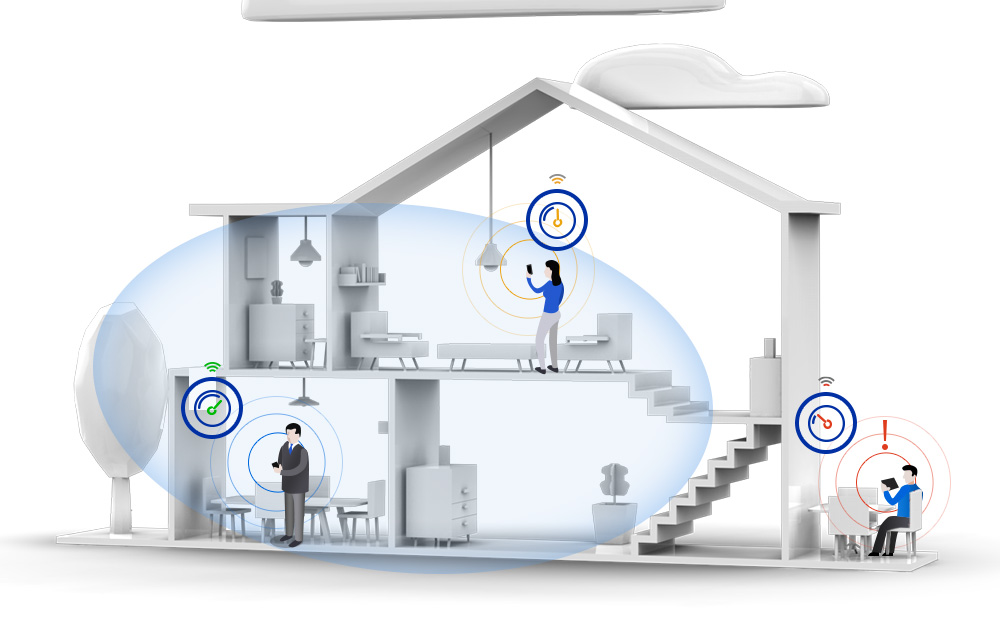
Position Your Router in a Central Location
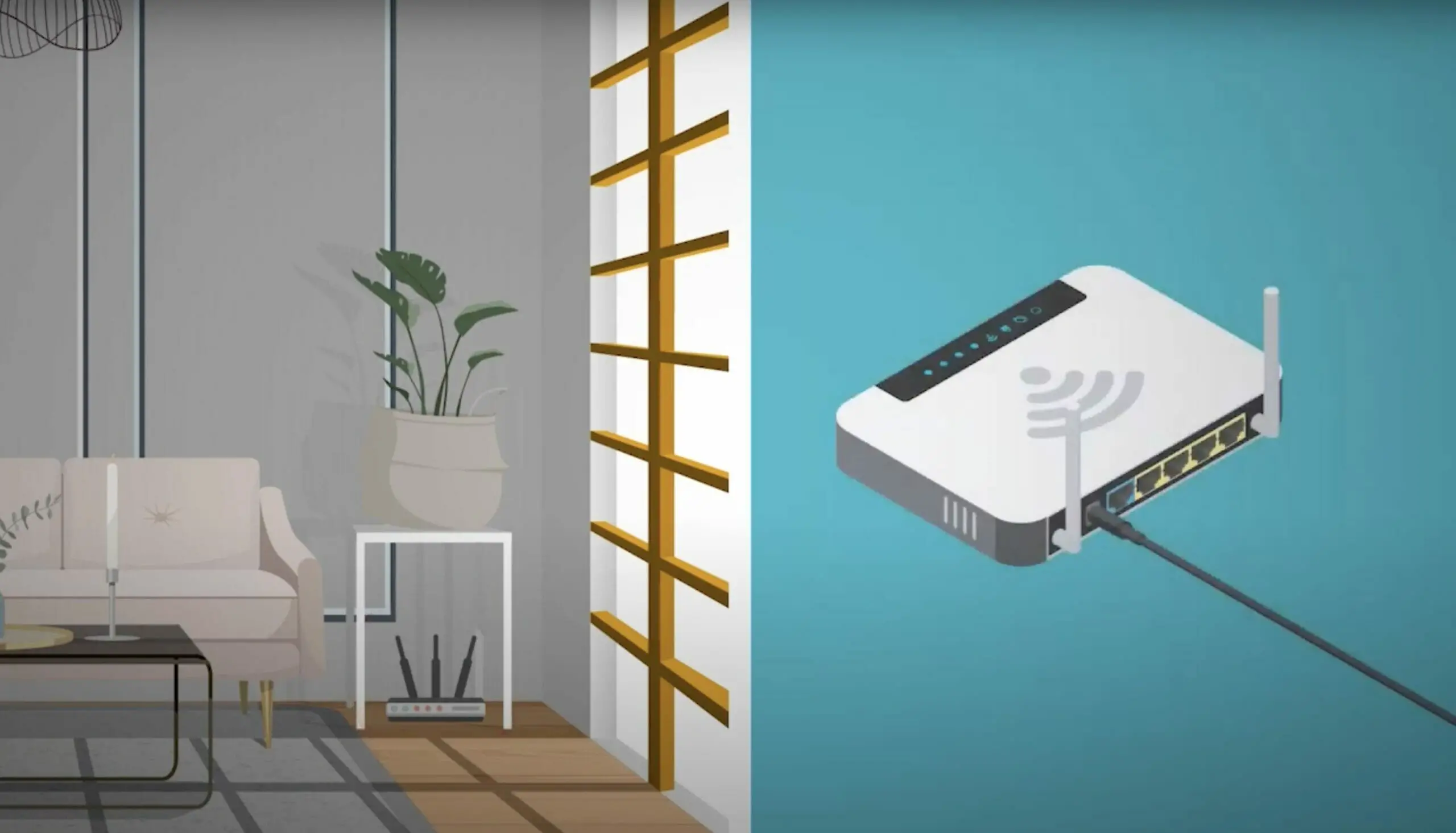
Place your router in a central location to ensure an even distribution of the Wi-Fi signal.
Limit Network Access
Restrict access to your Wi-Fi network to trusted devices and guests to prevent unauthorized access.
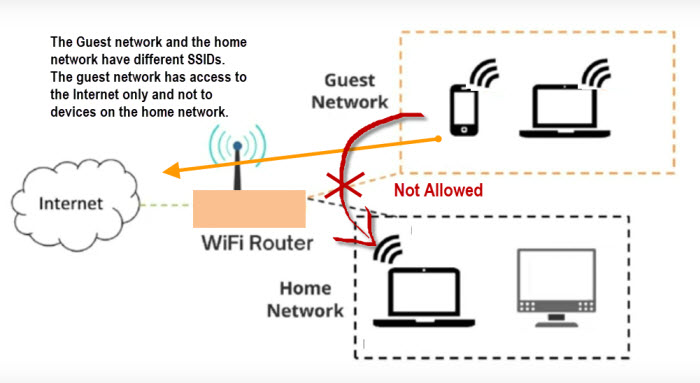
Use a Guest Network
Set up a guest network to isolate visitors from your main network and prevent them from accessing your devices.
Setting Up Devices on Your Wi-Fi Network
Now that your Wi-Fi network is set up and secure, you can start connecting devices to it. Here's a step-by-step guide:
Connect a Device to the Wi-Fi Network
Enter the network name (SSID) and password on your device to connect to the Wi-Fi network.
Configure the Device Settings
Configure the device settings to ensure it's connected to the correct network and using the correct password.
Conclusion
Setting up a wireless network at home requires some effort, but with the right equipment and knowledge, you can create a reliable and fast Wi-Fi network. Remember to secure your network by using strong passwords, WPA2 or WPA3 encryption, and by limiting network access. By following these steps, you'll be enjoying a seamless and fast internet connection in no time.