D-Link Router Setup with Wireless Network: A Comprehensive Guide
Welcome to the ultimate guide on setting up your D-Link wireless router with a reliable and secure wireless network. In this article, we will walk you through the step-by-step process of configuring your D-Link router, including setting up your wireless settings, configuring your network name and password, and optimizing your network performance.
Introduction
Setting up a wireless router is a crucial step in establishing a reliable and secure internet connection in your home or office. With a D-Link wireless router, you can enjoy seamless connectivity, fast internet speeds, and the ability to connect multiple devices to your network. In this guide, we will provide you with a comprehensive overview of the D-Link router setup process, including the steps to configure your wireless settings, optimize your network performance, and troubleshoot common issues.
Step 1: Connect Your Router to the Modem
The first step in setting up your D-Link router is to connect it to your modem using an Ethernet cable. Connect one end of the cable to the WAN port on your modem and the other end to the internet port on your D-Link router. This will establish a connection between your router and your modem.
Step 2: Power On Your Router and Modem
Once you have connected your router to your modem, power on both devices. Your modem should be connected to your internet service provider (ISP), and your router should be powered on and ready to be configured.
Step 3: Log In to Your Router's Web Interface
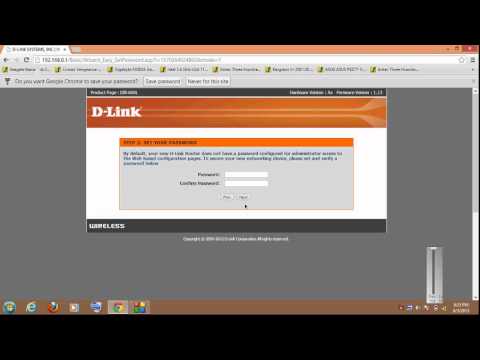
To configure your D-Link router, you will need to log in to its web interface. Open a web browser and type in the IP address of your router (usually 192.168.0.1 or 192.168.1.1). Enter the username and password to log in to your router's web interface. The default username and password are usually printed on the underside of your router or in the user manual.
Step 4: Configure Your Wireless Settings
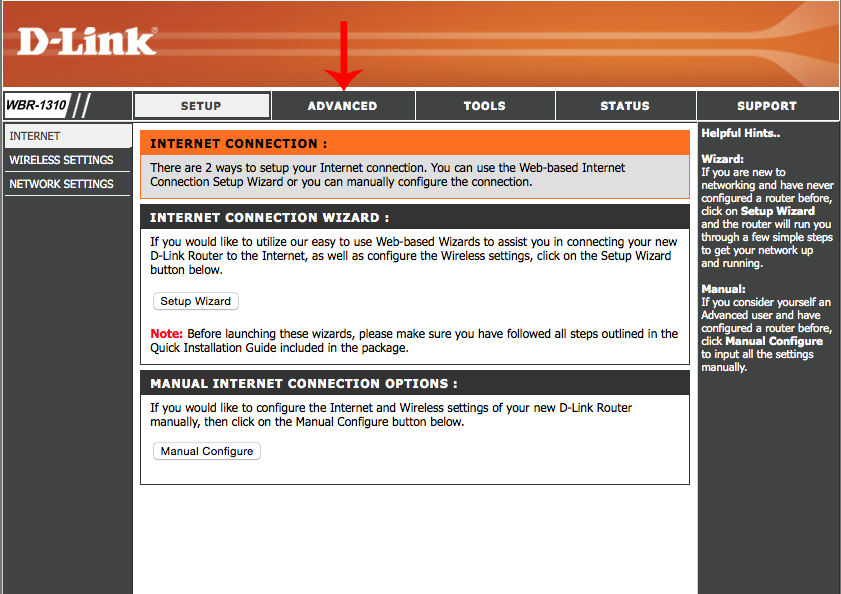
Once you have logged in to your router's web interface, navigate to the Wireless Settings section. Here, you will be able to configure your wireless settings, including your network name (SSID), wireless channel, and security settings. Make sure to change the default SSID and password to secure your network.
Step 4.1: Change Your Network Name (SSID)

Enter a unique and memorable network name (SSID) for your wireless network. This will be the name that appears when you scan for wireless networks on your computer or wireless device.
Step 4.2: Choose a Strong Password
Choose a strong password for your wireless network. A strong password should be at least 12 characters long and include a mix of uppercase and lowercase letters, numbers, and special characters. Avoid using easily guessable information such as your name, birthdate, or common words.
Step 4.3: Configure Your Wireless Channel
Choose a wireless channel for your network. The wireless channel you choose will depend on the devices you have connected to your network and the other wireless networks in your area. You can use a wireless channel analyzer to help you choose the best channel for your network.
Step 5: Configure Your Network Settings
Once you have configured your wireless settings, navigate to the Network Settings section to configure your network settings. Here, you will be able to configure your DHCP settings, configure your firewall, and set up your QoS (Quality of Service) settings.
Step 5.1: Configure Your DHCP Settings
Configure your DHCP settings to assign IP addresses to devices on your network. You can choose to assign IP addresses automatically or manually.
Step 5.2: Configure Your Firewall
Configure your firewall to block incoming and outgoing traffic on your network. You can choose to block specific ports or allow traffic from specific IP addresses.