Setup Linksys Router with Firmware Update: A Step-by-Step Guide
In today's digital age, having a reliable and secure internet connection is crucial for both personal and professional purposes. Linksys routers are a popular choice for many users due to their ease of use and high-performance capabilities. However, to ensure optimal performance and security, it's essential to update the firmware regularly. In this article, we'll guide you through the process of setting up your Linksys router with firmware update.
Why Update Firmware?
Firmware updates are essential for maintaining the security and performance of your router. These updates typically address vulnerabilities and bugs, improve performance, and enhance security features. By updating your firmware, you'll be able to enjoy a more stable and secure internet connection.
Requirements for Firmware Update
- A Linksys router (make sure it's compatible with the firmware update)
- A computer or mobile device with an internet connection
- The firmware update file downloaded from the official Linksys website
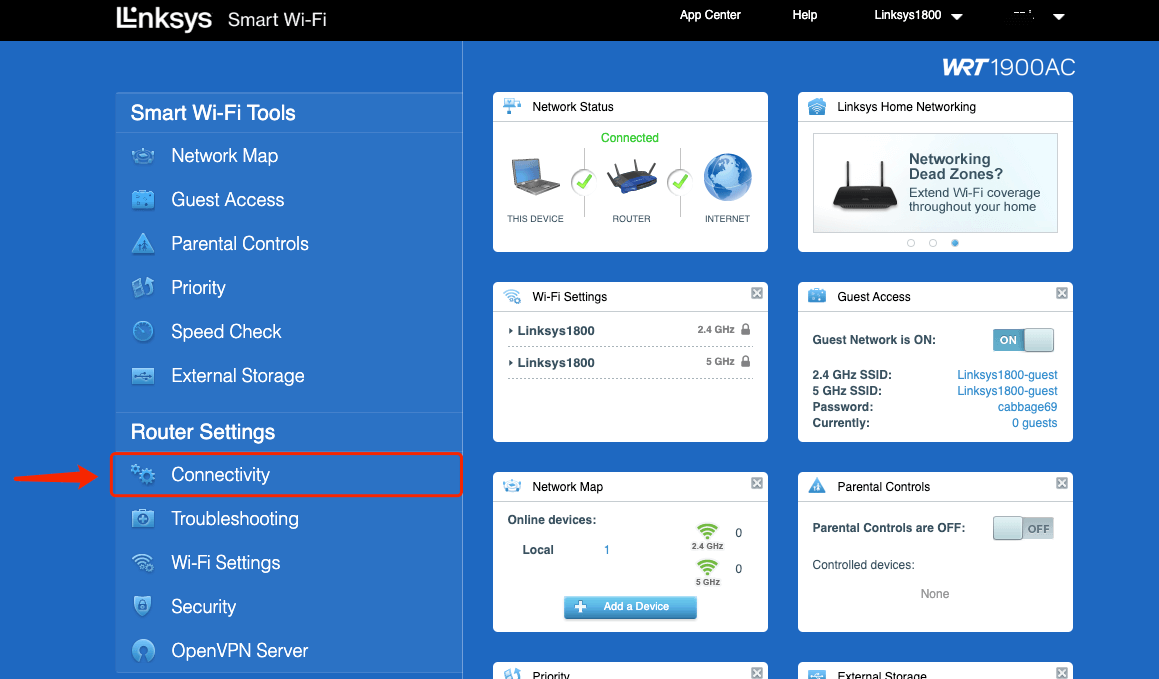
Step 1: Access the Router's Web Interface
To update the firmware, you'll need to access the router's web interface. Follow these steps:
- Open a web browser (such as Google Chrome, Mozilla Firefox, or Microsoft Edge) and type the router's IP address in the address bar. The default IP address for Linksys routers is usually 192.168.1.1 or 192.168.0.1.
- Press Enter to access the router's web interface.
Step 2: Login to the Router
To access the router's settings, you'll need to login with your username and password. If you haven't changed the default settings, you can find the default username and password on the underside of the router or in the user manual.
- Enter the username and password in the login page.
- Click Login to access the router's settings.
Step 3: Check for Firmware Updates
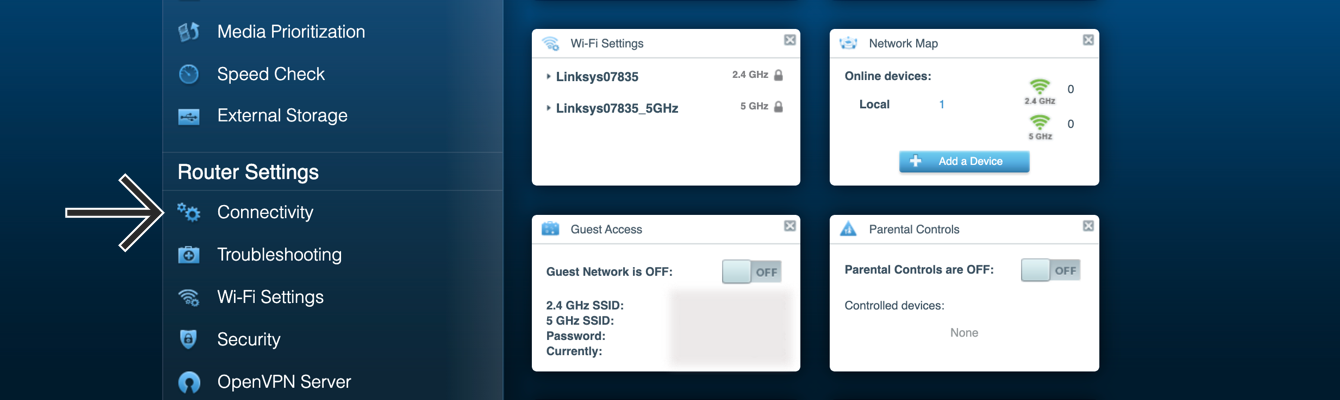
Once you're logged in, navigate to the Firmware Update section. This is usually found in the Advanced Settings or Administration section.
- Click on the Firmware Update tab.
- The router will check for available firmware updates.
Step 4: Download and Install the Firmware Update
If a firmware update is available, follow these steps:
- Click Download to download the firmware update file.
- Save the file to your computer or mobile device.
- Go back to the router's web interface and navigate to the Firmware Update section.
- Click Browse and select the downloaded firmware update file.
- Click Update to install the firmware update.
- The router will restart and apply the firmware update.
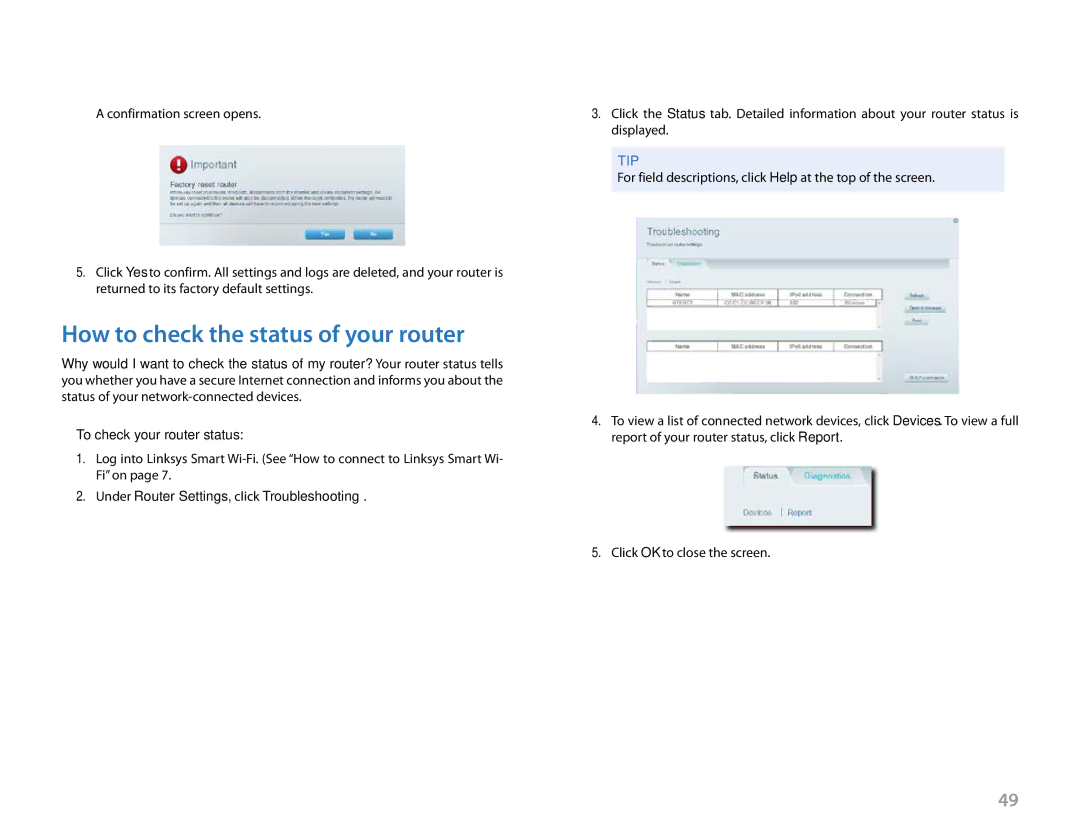
Step 5: Verify the Firmware Update
After the firmware update is installed, verify that it's been applied correctly. Follow these steps:
- Go back to the Firmware Update section.
- Check the firmware version to ensure it's the latest version.
Conclusion
Updating your Linksys router's firmware is a straightforward process that can be completed in just a few steps. By following this guide, you'll be able to ensure optimal performance and security for your internet connection. Remember to update your firmware regularly to stay protected from vulnerabilities and bugs.
Additional Tips
- Make sure to backup your router's settings before updating the firmware.
- Use a stable internet connection to download the firmware update file.
- Avoid interrupting the firmware update process, as this can cause instability or bricking of the router.