TP-Link Archer C8 Firmware Update Process: A Step-by-Step Guide
As a proud owner of a TP-Link Archer C8 router, you might be wondering how to update the firmware to take advantage of the latest enhancements and security patches. In this article, we'll walk you through the entire TP-Link Archer C8 Firmware Update Process, ensuring that you can breathe new life into your router.
Case Scenario: Understanding Your TP-Link Archer C8 Router
The TP-Link Archer C8 is a wireless router that can handle most tasks thrown at it by normal home users. However, support for it ended way back in 2016, and no more official updates were released since then. But, you can still bring it back to safer operation with modern updated firmware like dd-wrt.
Viewing and Downloading Firmware
Before we dive into the update process, it's essential to understand the different firmware versions available for your TP-Link Archer C8 router. You can view and download the firmware from the TP-Link website. Select the corresponding hardware version, click on Firmware, and a list of available firmware will be displayed.
Upgrade Options
There are several ways to upgrade the firmware on your TP-Link Archer C8 router:
- Online Upgrade through Web Management Page: If your router supports Cloud service, you can upgrade the firmware automatically by clicking the Upgrade icon.
- Manual Upgrade: Download the latest firmware version for your device, then follow the steps below to upgrade manually.
Manual Firmware Upgrade Steps
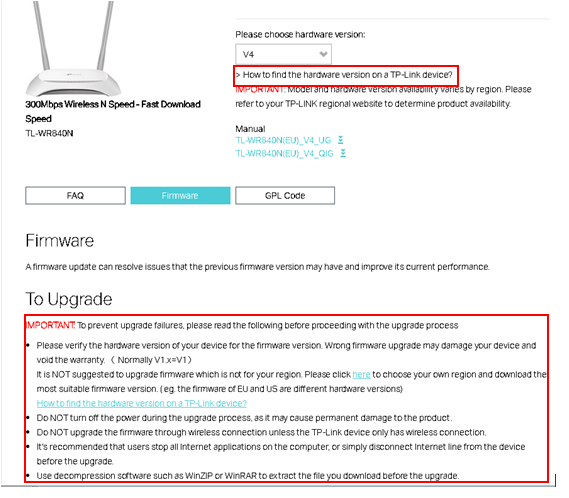
Here are the steps to manually upgrade the firmware on your TP-Link Archer C8 router:
- Download the Latest Firmware Version: Go to the download center for your region on the TP-Link website. Select the appropriate drop-downs for your TP-Link product, choose the corresponding hardware version, and click on Firmware. A list of available firmware will be displayed.
- Connect to Your Router: Connect your device to the TP-Link wireless router either via Ethernet or wirelessly.
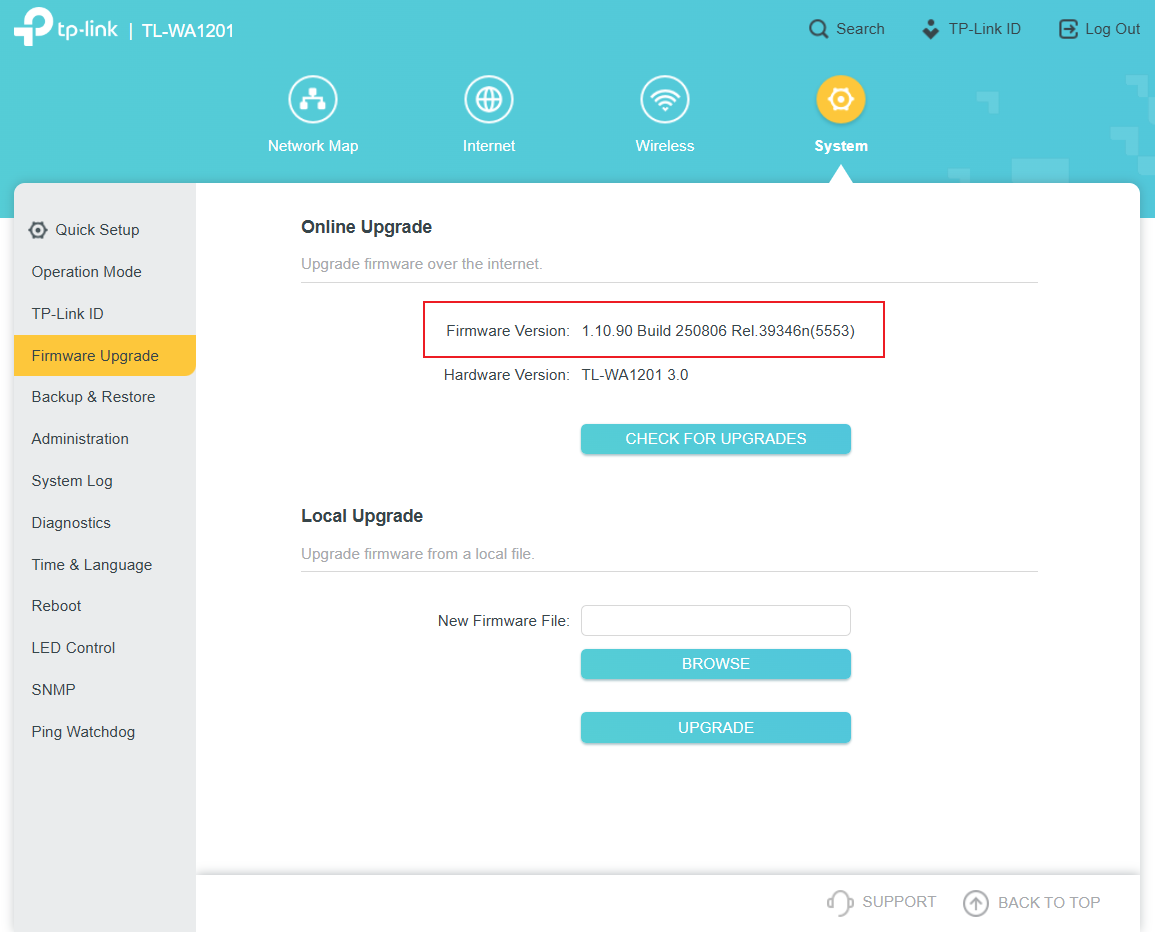
- Locate the Firmware File: Click Choose File to locate the downloaded firmware file, and click Upgrade.
- Backup Configuration Settings: You can backup the configuration file in your computer and restore the router to the previous settings from the backup file after the firmware update or when needed. Go to System Tools > Backup & Restore.
Reboot and Restore the Router
After the firmware update, reboot and restore the router to ensure the local management webpage is accessible. This will also help to ensure that the firmware update is applied correctly.
Conclusion
Updating the firmware on your TP-Link Archer C8 router is a straightforward process that can breathe new life into your device. By following the steps outlined in this article, you can ensure that your router is always up-to-date with the latest features and security patches. Remember to always backup your configuration settings before updating the firmware, and reboot and restore the router after the update to ensure a smooth transition.
Recommended Steps for Maintenance
At TP-Link, supporting our users and maintaining security remains a top priority. In addition to installing the firmware update, TP-Link also recommends the following steps:
- Reboot and restore the router to ensure the local management webpage is accessible.
- Regularly check for firmware updates to ensure you have the latest features and security patches.
- Backup your configuration settings regularly to ensure that you can restore your router to its previous settings in case of any issues.




![[New Firmware] Archer C80 (US)_V1_210716 - TP-Link Community](https://static-community.tp-link.com/attach/5/11/2018/7f0613f5c18145c1a01ff026b60599ce.jpg "[New Firmware] Archer C80 (US)_V1_210716 - TP-Link Community")