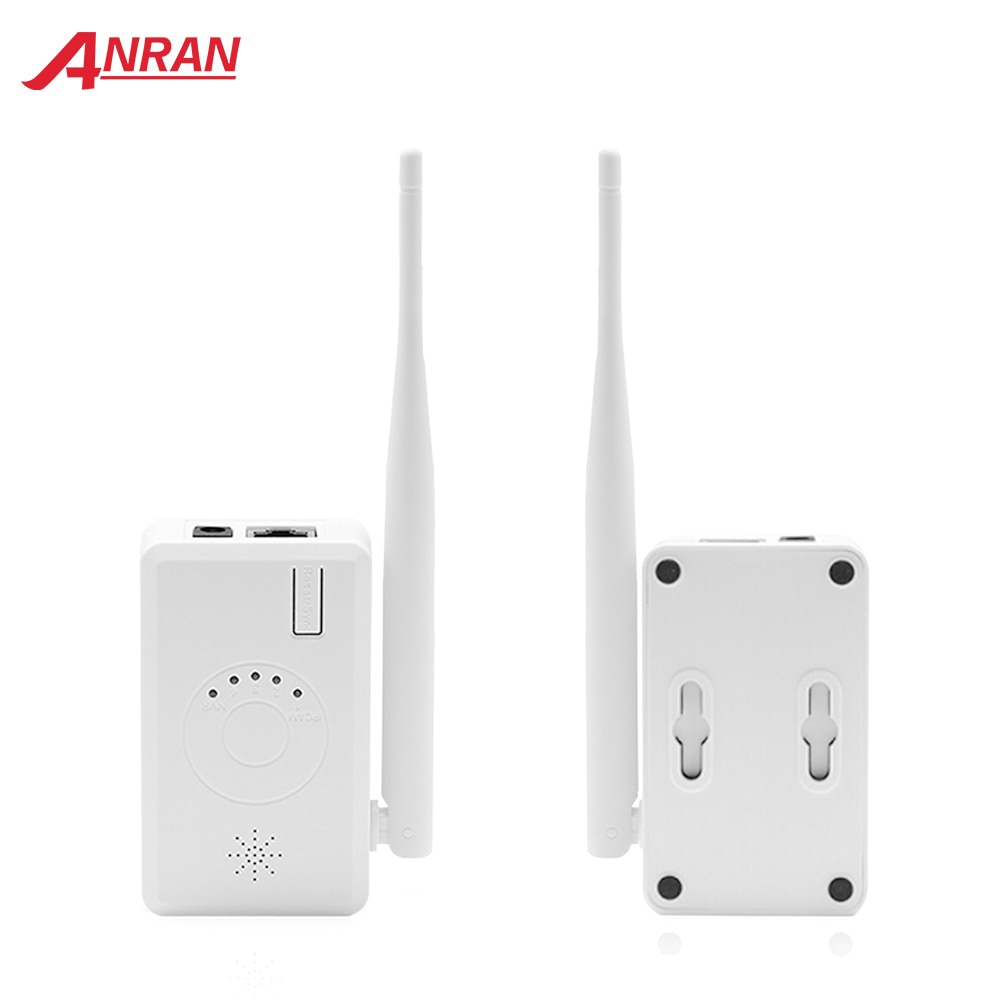
Setting Up a Wireless Router for a Secure Wireless Security System
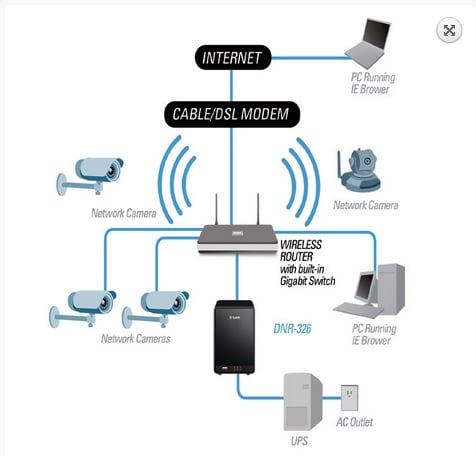
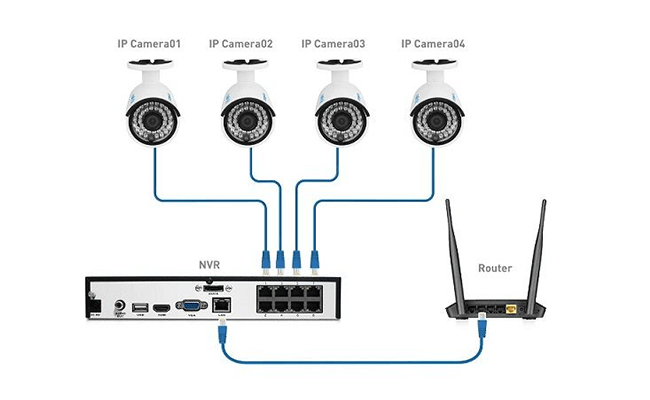
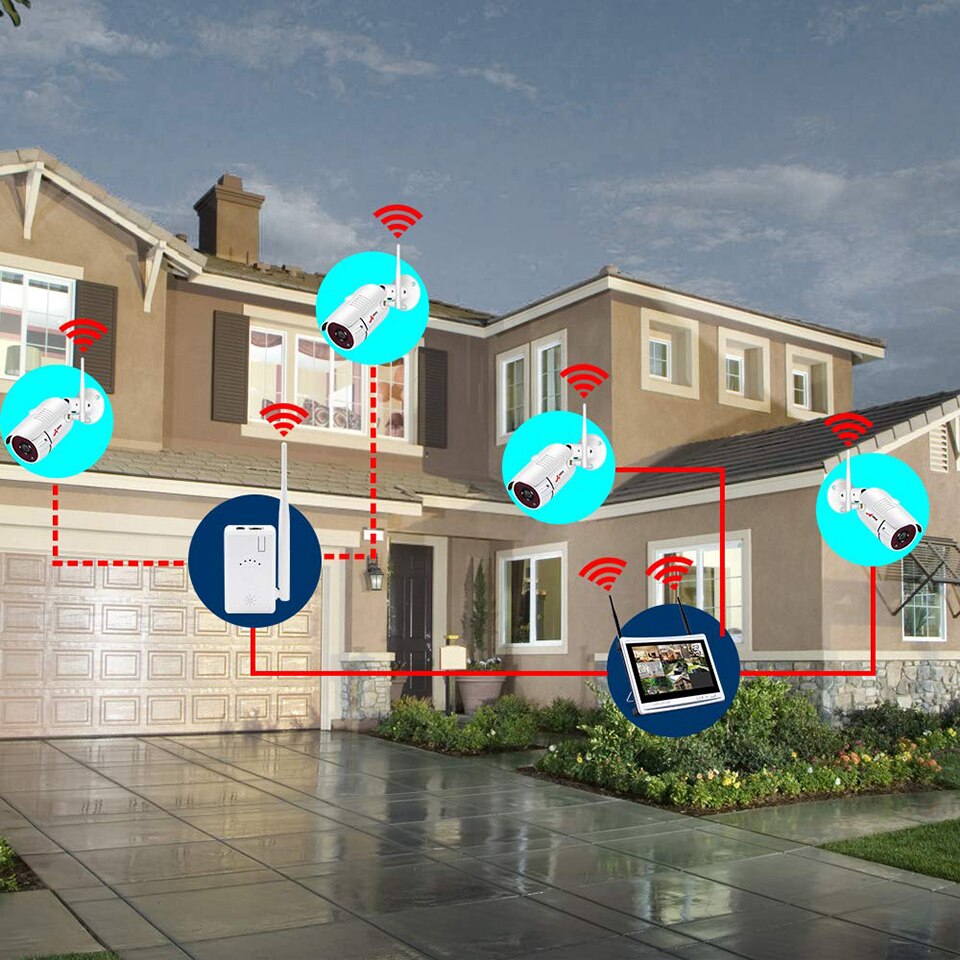
Setting up a wireless router for a wireless security system requires careful attention to detail to ensure that your network is secure and performs well. In this guide, we will walk you through the steps to set up a wireless router for a wireless security system, highlighting the importance of a secure setup and providing tips for device placement, initial setup, and troubleshooting common issues.
Choosing a Wireless Router
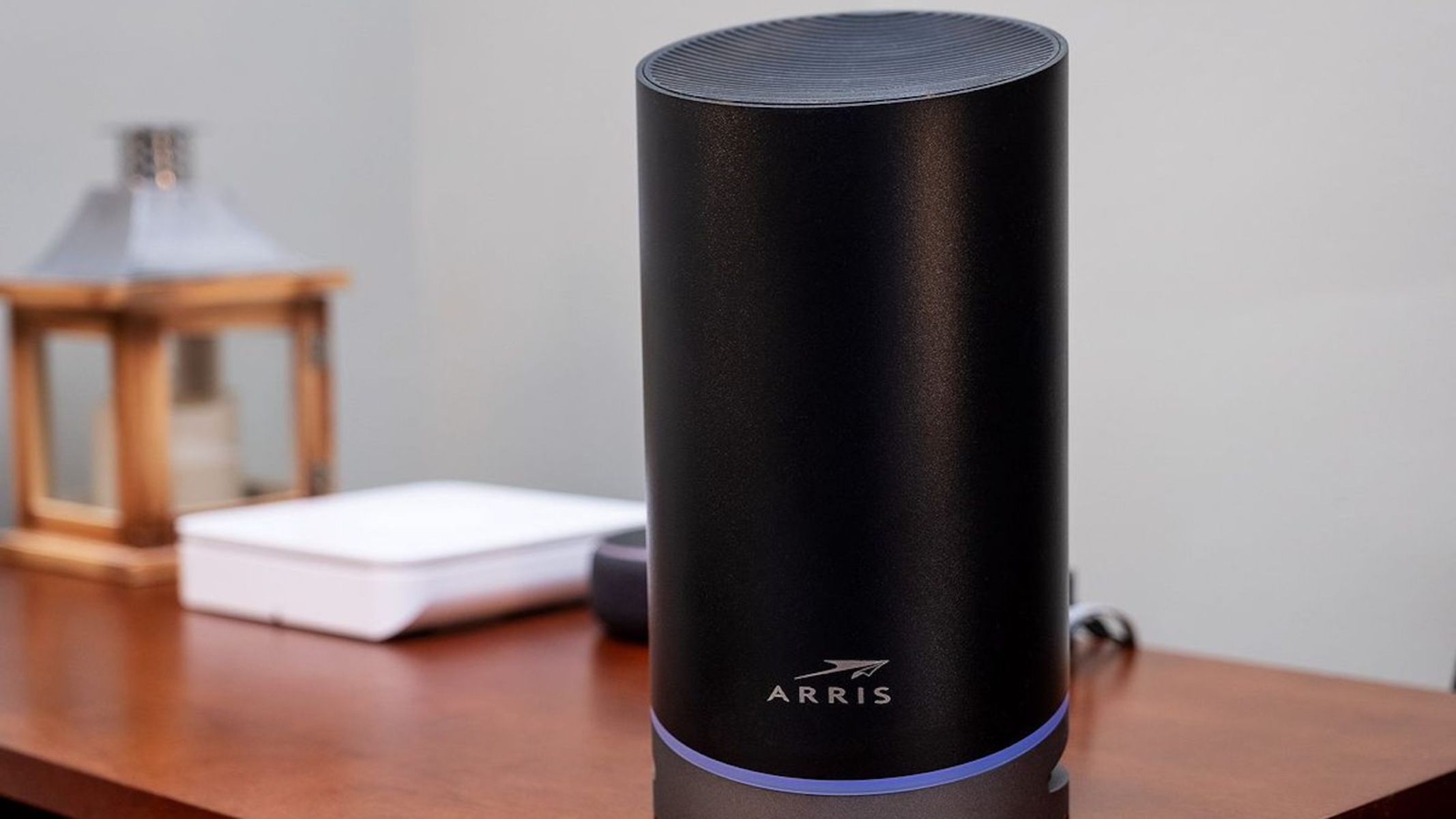
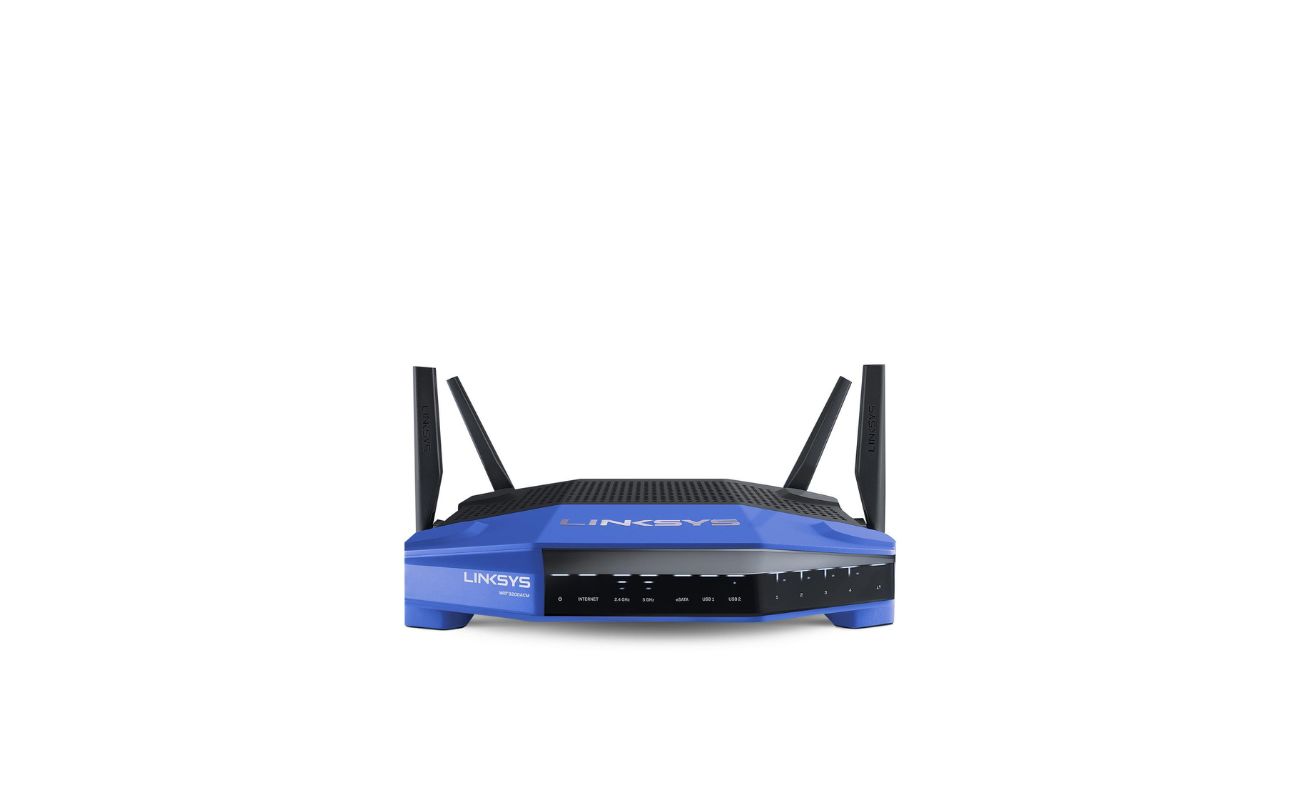
When selecting a wireless router for your wireless security system, consider the following factors:
- Compatibility: Ensure that your router supports your security system's protocol and has the necessary features for remote access and video streaming.
- Speed: Choose a high-speed router that can handle multiple devices and provide a strong connection for video streaming and other data-intensive activities.
- Security: Opt for a router with robust security features, such as WPA3 encryption, firewall software, and network intrusion detection.
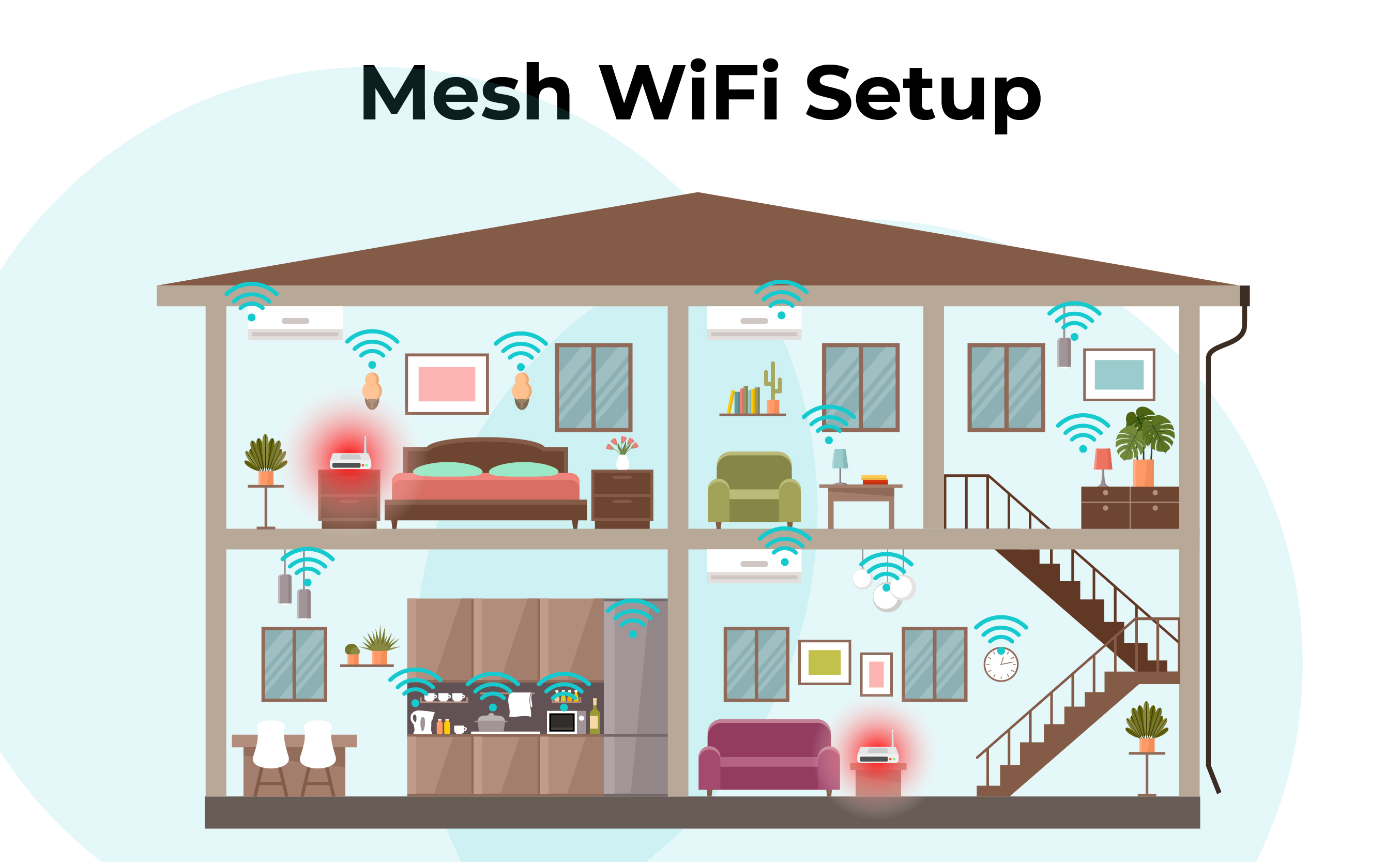
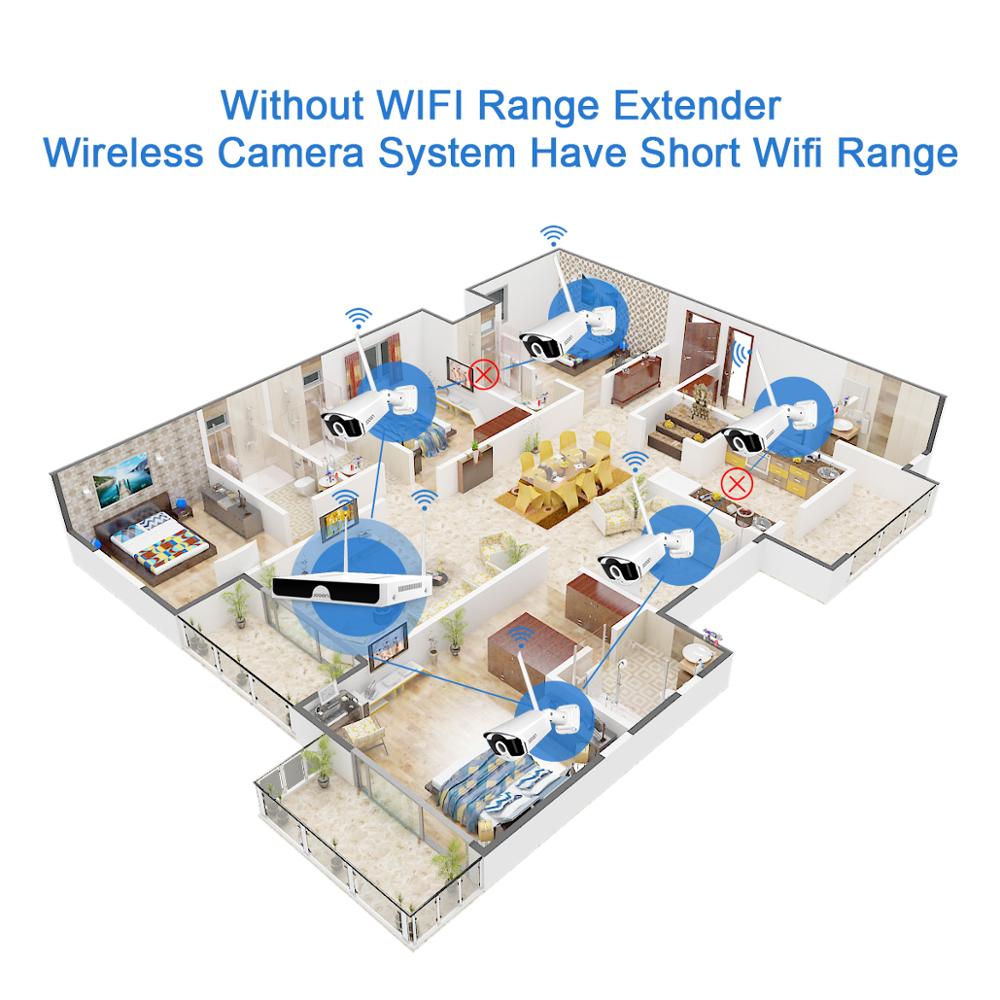
- Range: Consider a router with a strong signal strength to ensure coverage throughout your home or office.
- Ease of setup: Choose a router with an easy-to-use interface and built-in configuration tools for a hassle-free setup experience.
Preparing for Setup
Before setting up your wireless router, prepare the following:
- modem: Ensure your modem is compatible with your router and has a strong internet connection.
- security devices: Update your security devices, such as cameras and sensors, to the latest firmware.
- ethernet cables: Have a spare ethernet cable to connect your router to your modem.
- power source: Ensure a stable power source for your router.
Setting Up Your Wireless Router
Follow these steps to set up your wireless router:
Step 1: Power On Your Router
Connect the power cord to the router and turn it on. Wait for the lights to stabilize and the router to boot up.
Step 2: Connect to the Router
Connect a computer or device to the router using an ethernet cable. Open a web browser and navigate to the router's IP address to access the setup page.
Step 3: Configure the Router
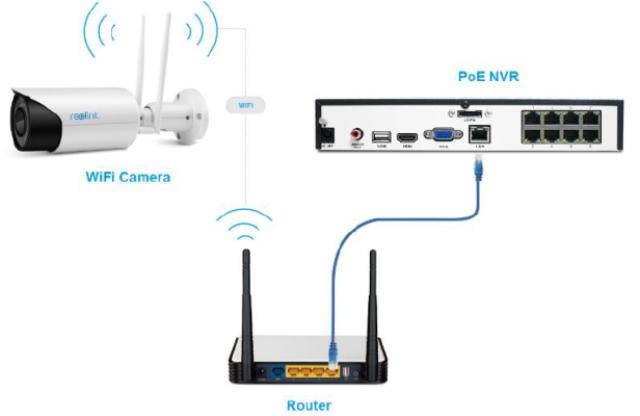
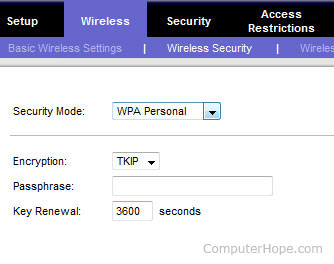
Enter the administrator login credentials and set up the router by configuring the following:
- Network name (SSID) and password.
- Wireless channel and bandwidth.
- Firewall and intrusion detection settings.
- Quality of Service (QoS) settings.
Step 4: Configure Your Security Devices
Update your security devices, such as cameras and sensors, to the latest firmware and configure them to connect to the router using the same network name and password as the router.
Step 5: Test Your Network
Test your network performance by streaming video and browsing the internet to ensure that your network is stable and secure.
Common Issues and Troubleshooting
Common issues that may occur during setup include:
- Router not booting up.
- Failed to connect to the router.
- Insecure network setup.
- Interference from other devices.
To troubleshoot these issues, follow these steps:
- Restart your router and modem.
- Check the router's settings and ensure that it is configured correctly.
- Check for firmware updates and update your router's firmware.
- Check for interference from other devices and change the channel on your router if necessary.
Best Practices for Maintaining a Secure Wireless Router
To maintain a secure wireless router:
- Regularly update the firmware.
- Change the network name and password periodically.
- Configure guest access and restrict it to a separate network.
- Set up a guest network for visitors.
- Use WPA3 encryption and 2-factor authentication.