G Router Setup for Home Network Speed Optimization
In today's digital age, having a fast and reliable home network is essential for streaming, gaming, and browsing. One of the most crucial components of a home network is the router, which acts as a central hub for all devices to connect to the internet. However, setting up a router can be a daunting task, especially for those who are not tech-savvy. In this article, we will provide a comprehensive guide on how to set up a G router for optimal home network speed optimization.
Why Optimize Your Router?
A well-optimized router can make a significant difference in your home network's performance. By optimizing your router, you can improve internet speed, reduce lag, and enhance overall network stability. With a fast and reliable network, you can enjoy seamless streaming, online gaming, and video conferencing.
Step 1: Choose the Right Location
One of the most critical steps in setting up a router is choosing the right location. The ideal location for a router is a central spot in your home, such as a living room or hallway. This ensures that the signal is evenly distributed throughout your home, minimizing dead spots and interference.
- Avoid placing the router near mirrors, glass, or other reflective surfaces that can cause signal interference.
- Keep the router away from walls and other physical barriers that can block the signal.
- Elevate the router to a high shelf or use a router stand to improve signal strength.
Step 2: Configure Wireless Settings
Configuring wireless settings is an essential step in optimizing your router. By adjusting the wireless channel and bandwidth, you can reduce interference and improve network performance.
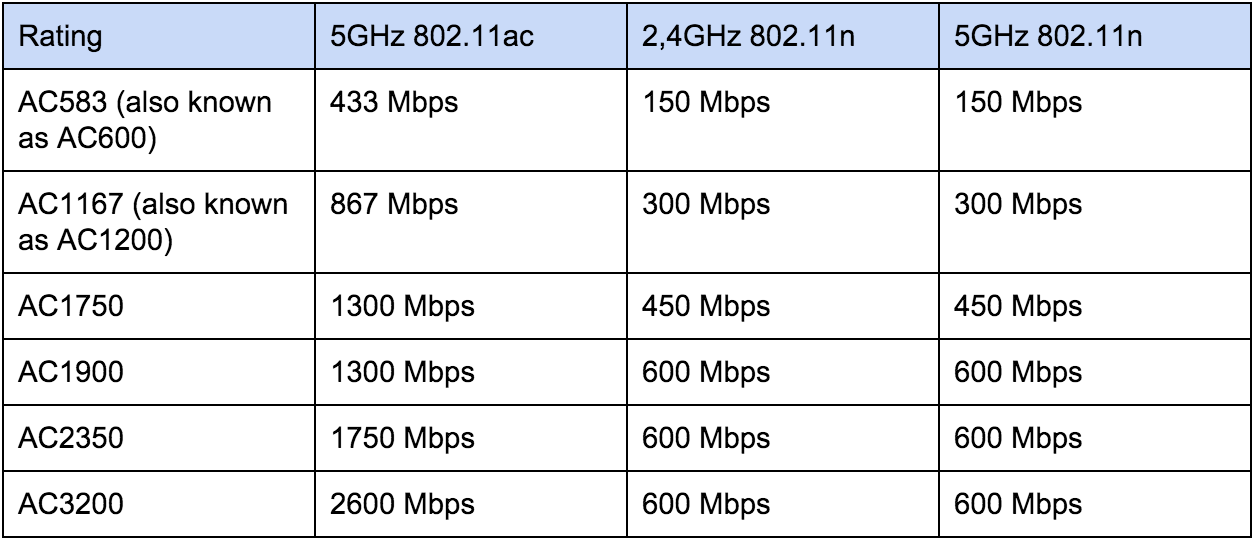
- Use the 5 GHz frequency band for devices that require high-speed data transfer, such as gaming consoles and smart TVs.
- Use the 2.4 GHz frequency band for devices that require longer range, such as smartphones and laptops.
- Change the wireless channel to a less congested channel, such as channel 1, 6, or 11.
- Adjust the wireless bandwidth to match your device's requirements, such as 20 MHz or 40 MHz.
Step 3: Enable Quality of Service (QoS)
Quality of Service (QoS) is a feature that allows you to prioritize internet traffic based on application, device, or IP address. By enabling QoS, you can ensure that critical applications, such as online gaming and video conferencing, receive sufficient bandwidth and priority.

- Enable QoS on your router's settings page.
- Create a new QoS rule and set the priority to "High" or "Very High" for critical applications.
- Assign the rule to the specific device or IP address.
Step 4: Update Firmware
Regularly updating your router's firmware is essential to ensure that you have the latest security patches and performance enhancements.
- Check the manufacturer's website for firmware updates.
- Download and install the latest firmware update.
- Reboot the router after the update.
Additional Tips for Optimal Router Performance
Here are some additional tips to ensure optimal router performance:
- Regularly restart your router to clear cache and improve performance.
- Use a wired Ethernet connection for devices that require high-speed data transfer.
- Use a router with a built-in antivirus and firewall for enhanced security.
- Use a router with a high-speed processor and sufficient memory for optimal performance.
Conclusion
Setting up a G router for optimal home network speed optimization requires careful planning and configuration. By following the steps outlined in this article, you can ensure that your router is optimized for maximum performance and reliability. Remember to choose the right location, configure wireless settings, enable QoS, and update firmware regularly to ensure optimal router performance.
With a fast and reliable network, you can enjoy seamless streaming, online gaming, and video conferencing. Don't settle for a slow and unreliable network – optimize your G router today and experience the difference for yourself.