Setting Up a Wireless Home Network: A Step-by-Step Guide
Are you tired of dealing with complex wiring and slow internet speeds in your home? Look no further! Setting up a wireless home network has never been easier. In this comprehensive guide, we will walk you through the process of setting up a reliable and secure wireless network that caters to all your devices.Understanding the Essential Components
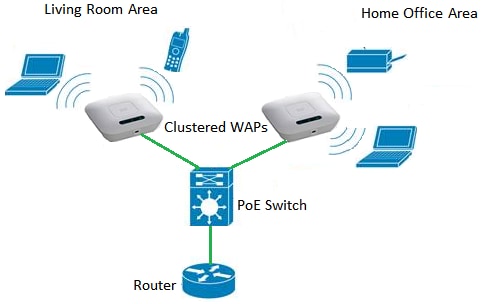
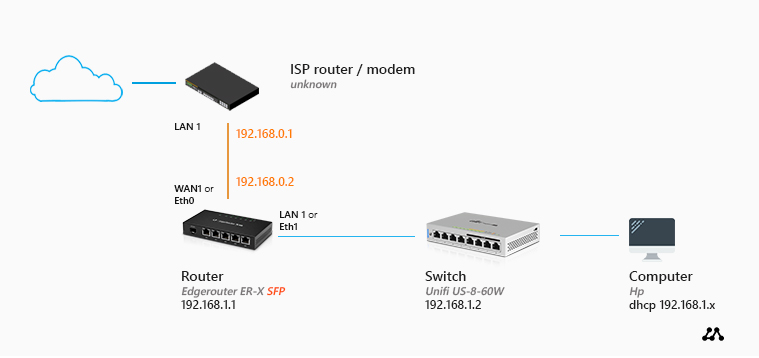
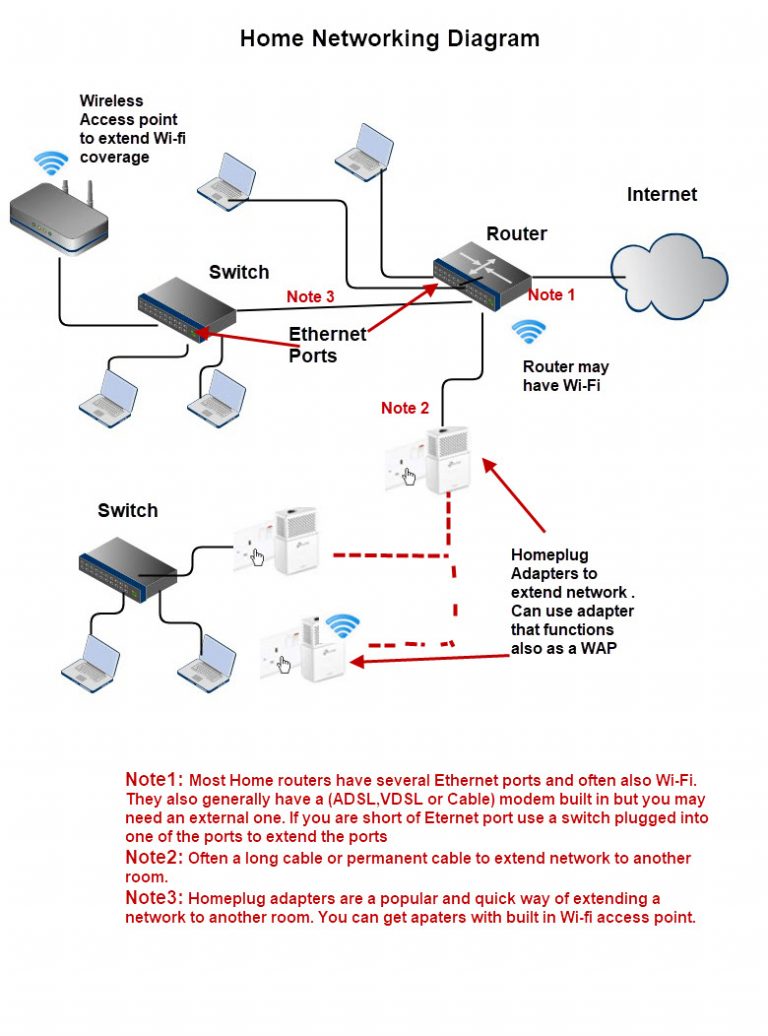
Before we dive into the setup process, it's essential to understand the fundamental components of a wireless home network:- Modem: This device connects your home network to the internet and is usually provided by your internet service provider (ISP."
- Wireless Router: Also known as a gateway, this device connects all your devices to the internet using Wi-Fi signals. It's usually the central point of your home network.
- Devices: Laptops, smartphones, tablets, smart TVs, and other devices that need to connect to your network.
Setting Up Your Wireless Network
To set up your wireless network, follow these simple steps:-
Step 1: Unbox and Physically Connect Your Router
Unbox your router and modem and connect them to the required power sockets. Ensure that your router is positioned in a central location in your home to ensure optimal coverage and signal strength.
-
Step 2: Connect to the Internet
Use an Ethernet cable to connect your modem to the internet port on your router. Most routers have a default IP address printed on the underside or on the packaging, which you'll need to log in to set up your network.
-
Step 3: Set Up Your Wi-Fi Network
Log in to your router using the default IP address, usually 192.168.0.1 or 192.168.1.1, and change the default administrator password. Then, set up your Wi-Fi network by changing the network name and password. You can also adjust settings like channel selection and Wi-Fi broadcast options.
-
Step 4: Connect Devices
Once your network is set up, connect your devices ( smartphones, laptops, tablets, etc.) to the network using the Wi-Fi settings. You'll need to enter the network name and password you set up in step 3 to connect.
-
Step 5: Secure Your Network
To ensure secure access to your network, enable WPA2 encryption and set a complex network password. Also, consider enabling features like MAC address filtering and guest network access.
Tips for a Streamlined Network Setup

- Position your router in a central location to ensure optimal coverage and signal strength.
- Use the latest router firmware to ensure optimal performance.
- Avoid overloading your network with too many devices, as this can slow down performance.
- Regularly update your router's firmware to ensure you have the latest features and security patches.
Secure Your Wi-Fi Network
Remember, security is key when it comes to your wireless home network. Here are some tips to keep your network secure:- Change your default administrator password and change it regularly.
- Enable WPA2 encryption and use a strong network password.
- Disable near fields communication (NFC) on your devices.
- Use a VPN when using public Wi-Fi or remotely accessing your network.
- Regularly back up your data to an external hard drive or cloud storage.
-Connection-Step-2-Version-3.jpg/aid1756116-v4-728px-Set-up-a-Wireless-Network-(WiFi)-Connection-Step-2-Version-3.jpg "How to Set Up Internet at Home: Guide to Wi-Fi Network Setup")




/wireless-router-57ee8cea5f9b586c353f3e9f.jpg "How to Set Up a Home Network- Beginners Guide")


