How to Find Router IP Address on Windows: A Step-by-Step Guide
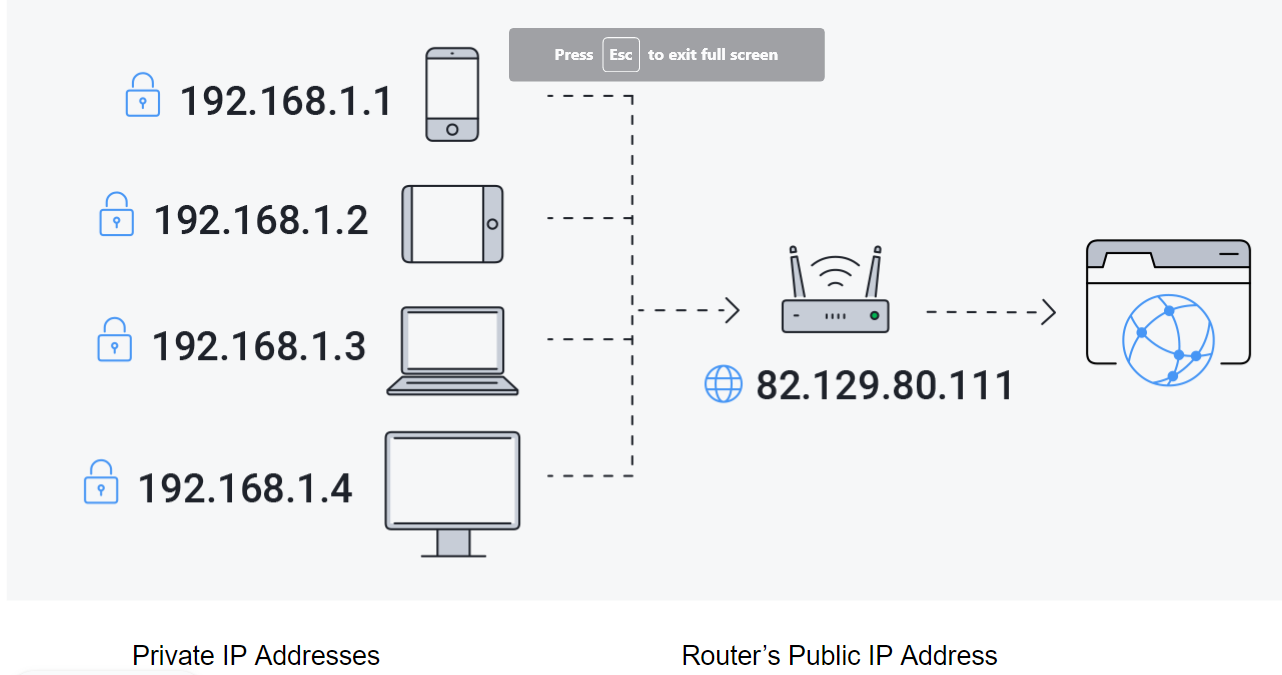
In today's digital age, having a stable and secure internet connection is essential for both home and office use. However, to ensure seamless connectivity and access to the internet, you need to have a properly configured and optimized network. One crucial aspect of network configuration is finding the router IP address on your Windows device. In this article, we will guide you on how to find the router IP address on Windows, exploring various methods and tools to help you access your router's settings and manage your network with ease.
Why Do You Need to Find Router IP Address on Windows?
Before diving into the methods for finding the router IP address, it is essential to understand why having it is important. The router IP address is required for a range of tasks, including:
- Configuring the router's settings to enhance network performance and security.
- Accessing the router's login page to set up or change the wireless network name, password, and other settings.
- Setting up port forwarding to allow incoming and outgoing traffic for applications requiring direct access from the internet.
- Understanding your network configuration to resolve connectivity issues.
Method 1: Finding Router IP Address Using Command Prompt (Windows)
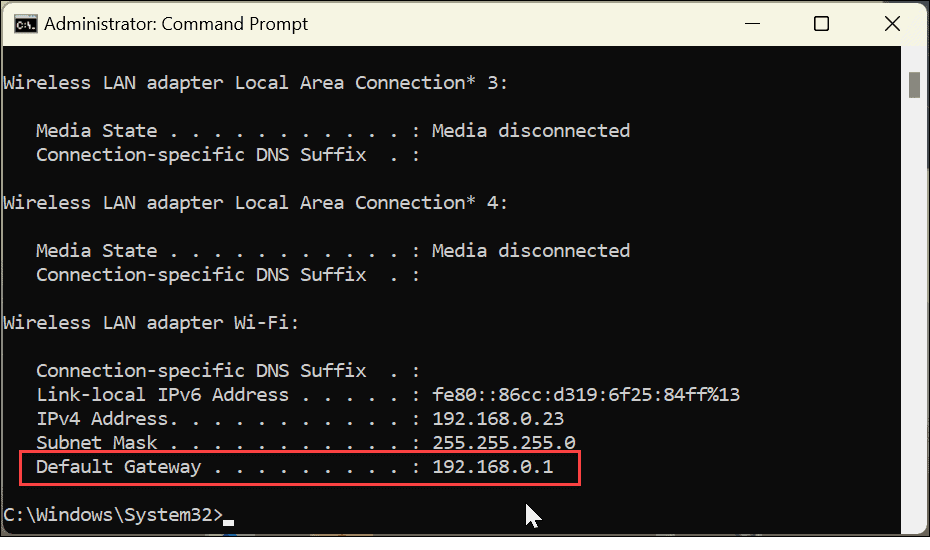
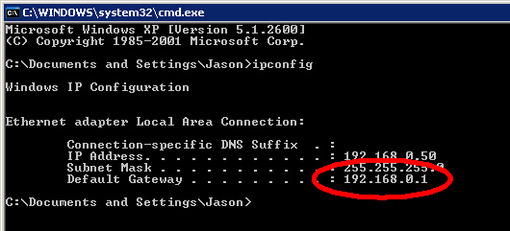
One of the most straightforward ways to find the router's IP address on Windows is by using the Command Prompt. This method requires you to open the Command Prompt (run as admin) and enter a simple command.
- Press the Windows key and type "cmd" to open the Command Prompt.
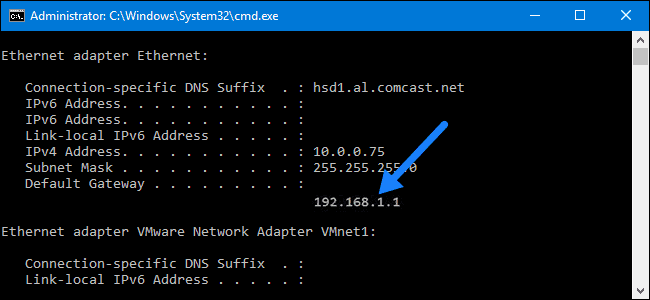
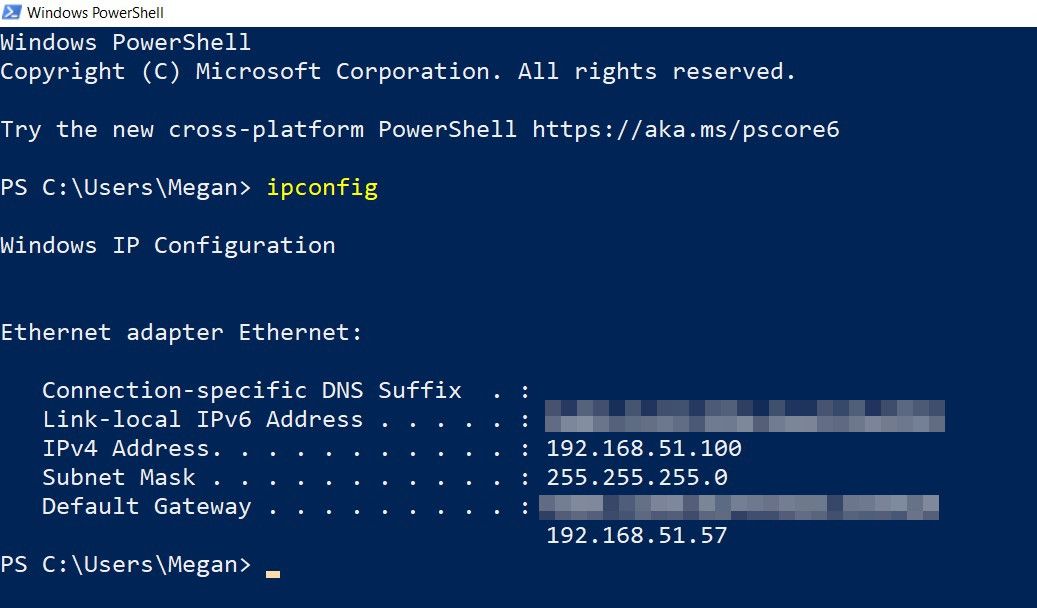
- Enter the command "ipconfig" and press Enter.
- Look for the "Default Gateway" in the list, which is your router's IP address.
Method 2: Using PowerShell (Windows)
For those who prefer using PowerShell for system management, finding the router IP address is equally simple.
- Open PowerShell with administrator privileges.
- Enter the command "Get-NetAdapter | Select-Object -ExpandProperty "IPv4DefaultGateway"` and press Enter.
- The IP address displayed is your router's default gateway.
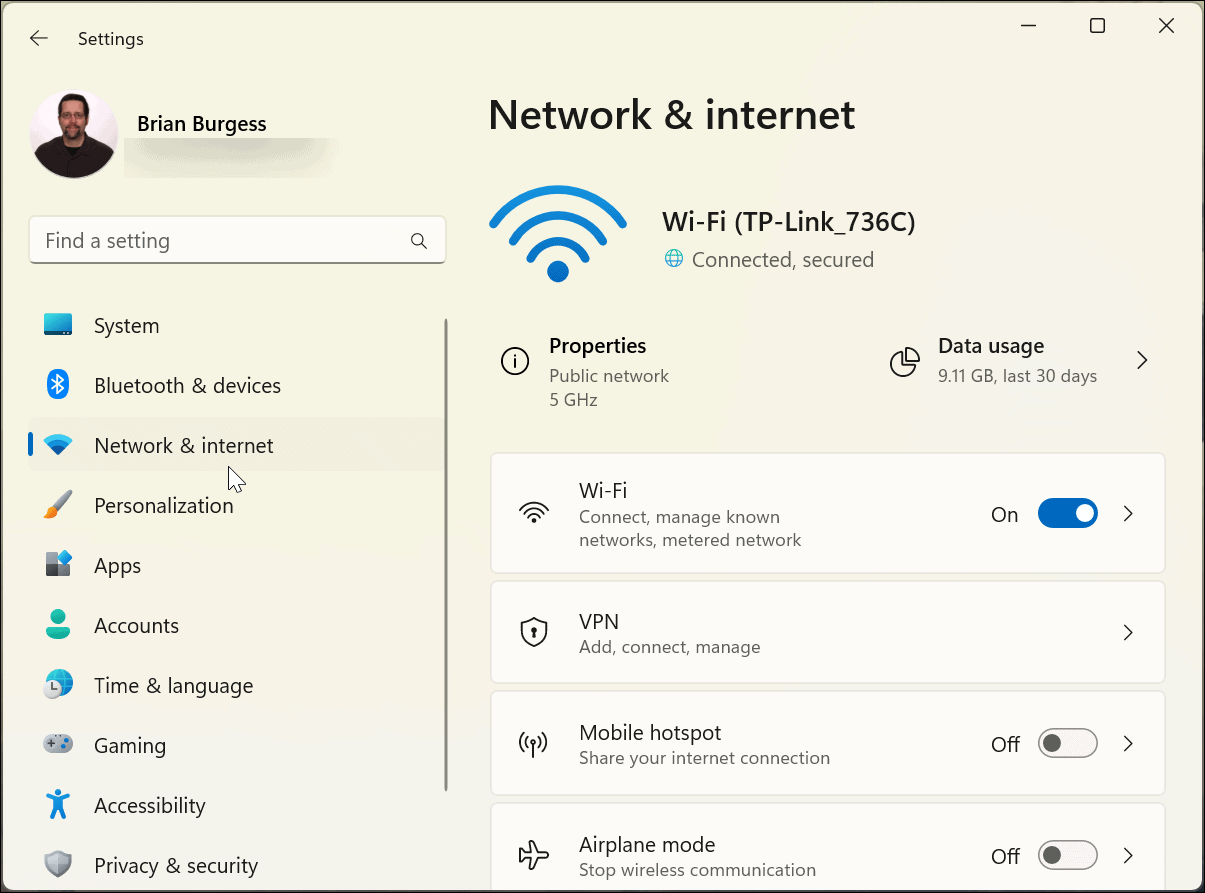
Method 3: Finding Router IP Address Using the GUI (Graphical User Interface)
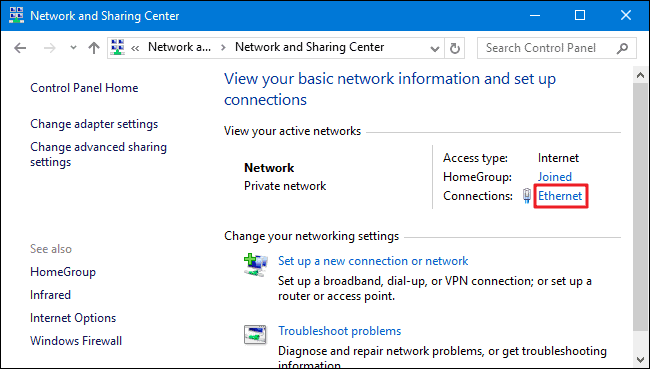
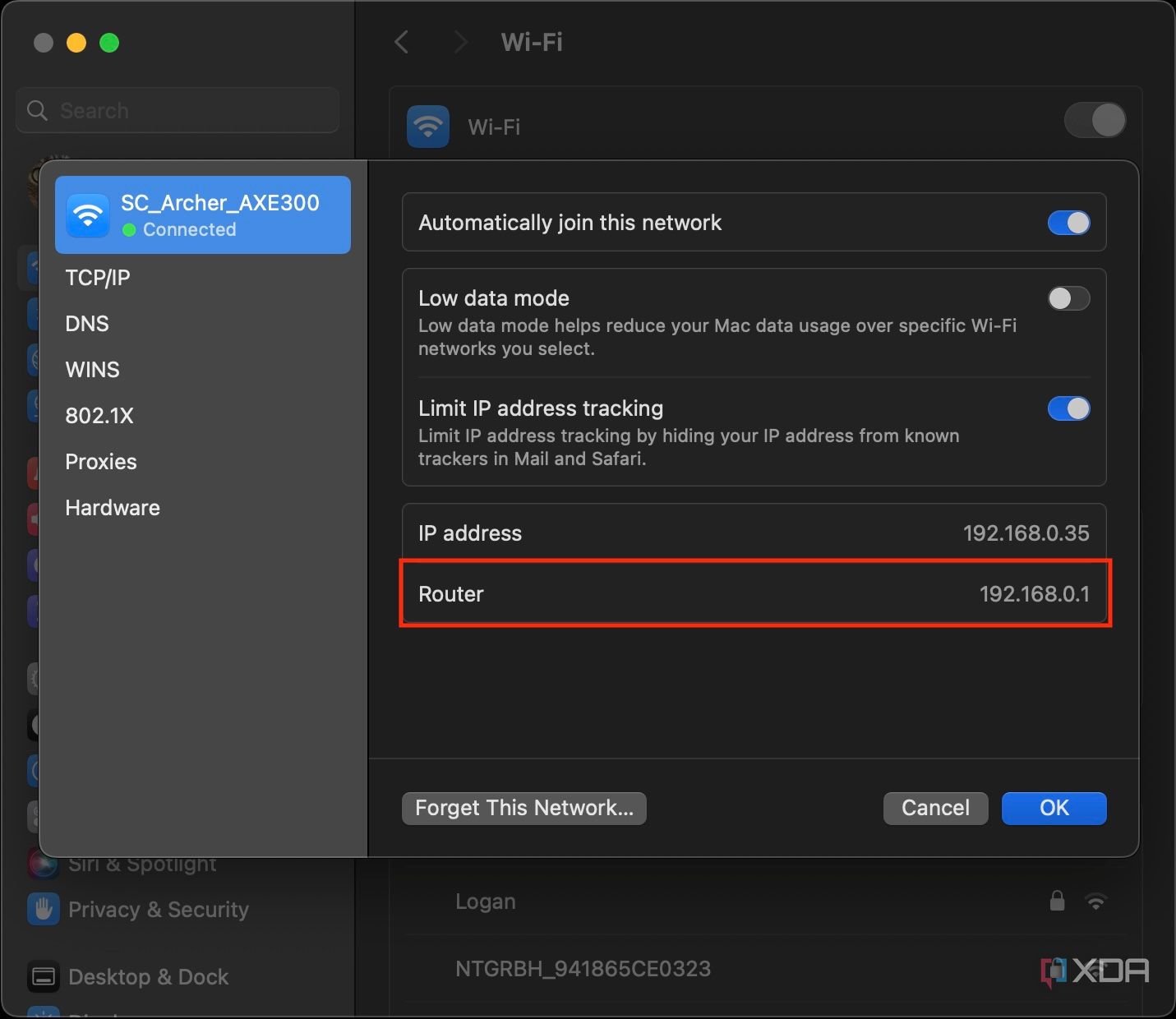
If you prefer using the graphical interface, you can find the router IP address directly from the Network Settings.
- Click on the Start button and go to Settings.
- Click on "Network & Internet" and then select "Status" from the left panel.
- Click on "View your network properties" from the right side, and the Default Gateway will be your router's IP address.
Troubleshooting and Additional Tips
If you're having trouble finding your router IP address or running into issues with your network connection, consider the following troubleshooting steps:
- Restart your router to reset the connection.
- Check your network cable connections for loose or faulty cables.
- Visit your router's manual or manufacturer's support for specific instructions for your model.
Conclusion
Finding the router IP address on Windows is a straightforward process that can be accomplished through the Command Prompt, PowerShell, or the GUI. Understanding your network's configuration is key to maintaining a fast and secure internet experience. Whether you're a tech-savvy user or just starting to explore your network settings, this guide has provided the steps to find your router IP address with ease. Remember, your router's IP address is indispensable for configuring your network settings, enhancing performance, and fixing connectivity issues.