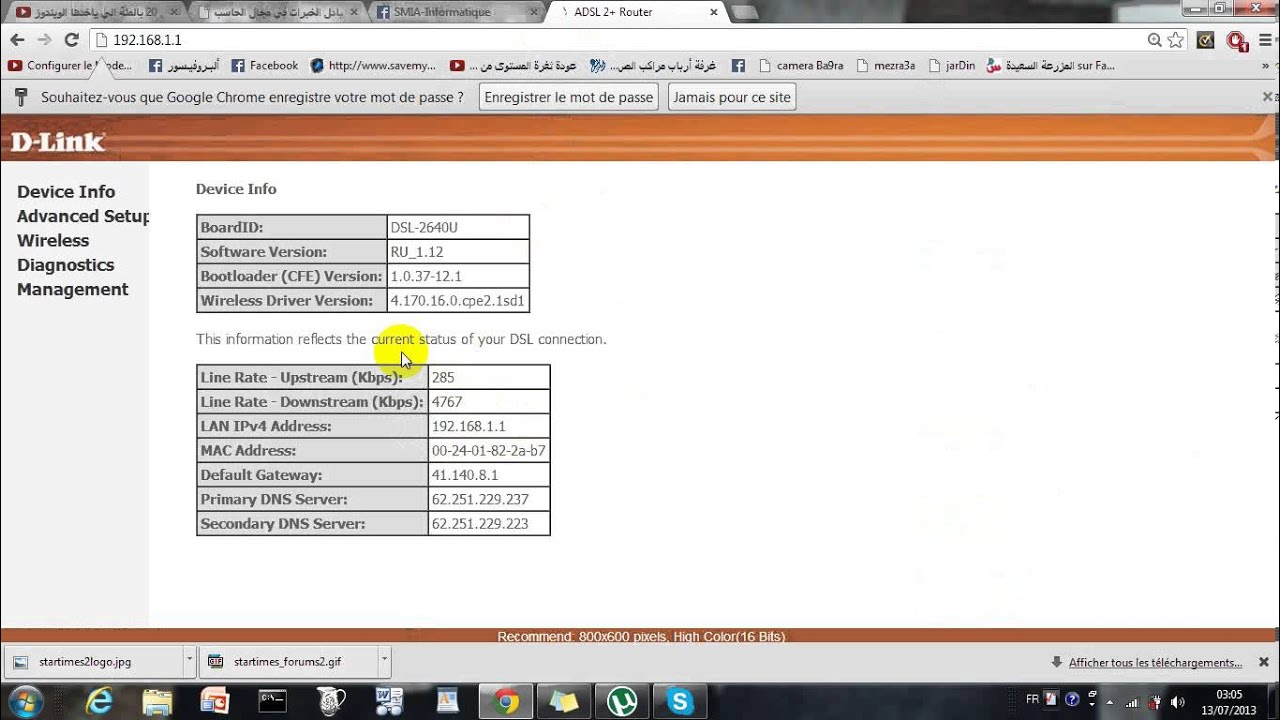
Step 1: Access the Router's Interface
- Connect your computer to the router's network using a wired Ethernet connection or Wi-Fi.
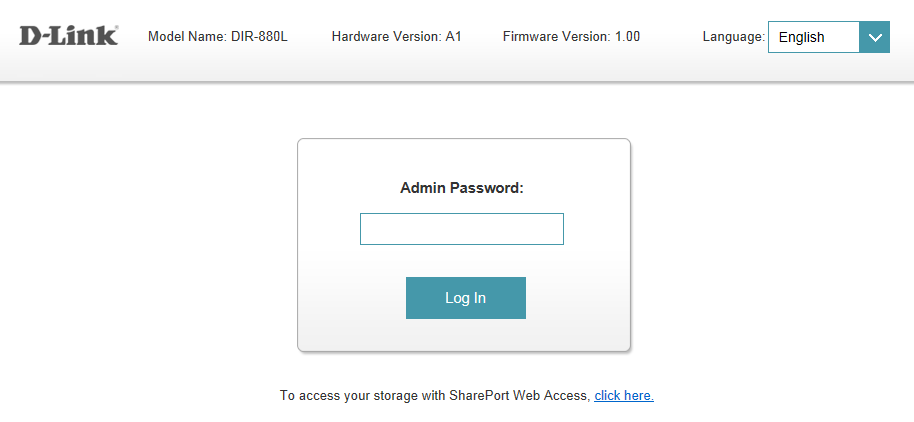
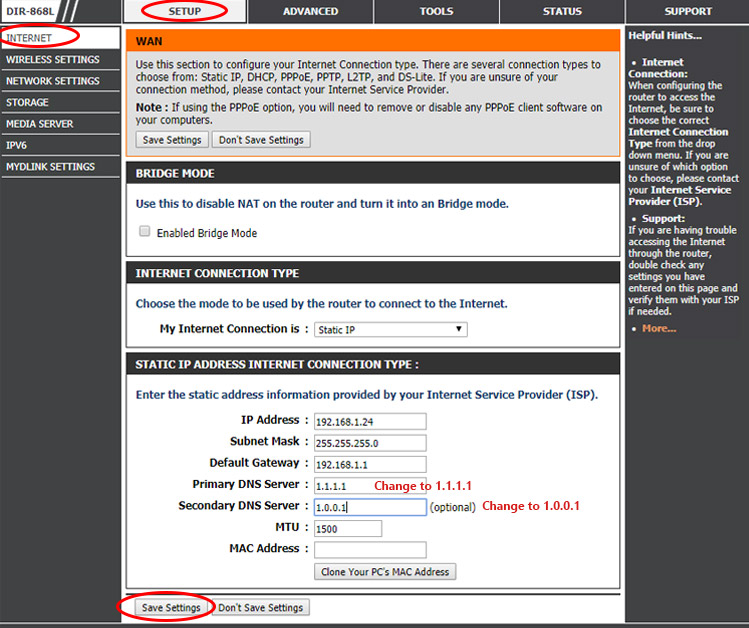
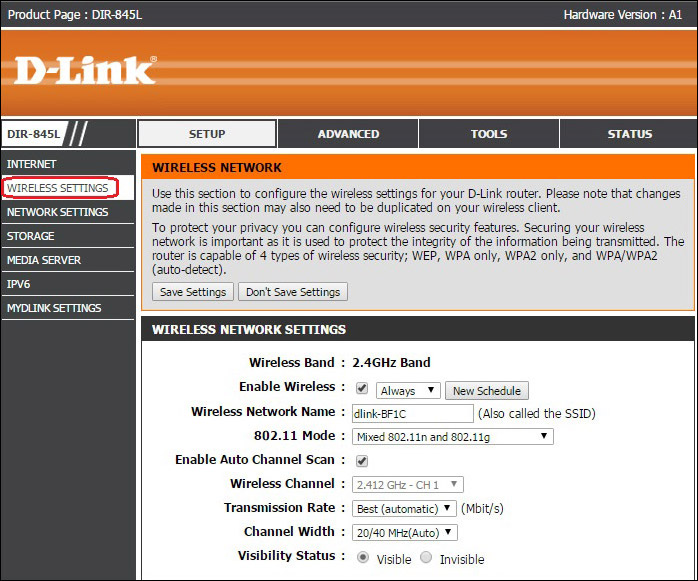
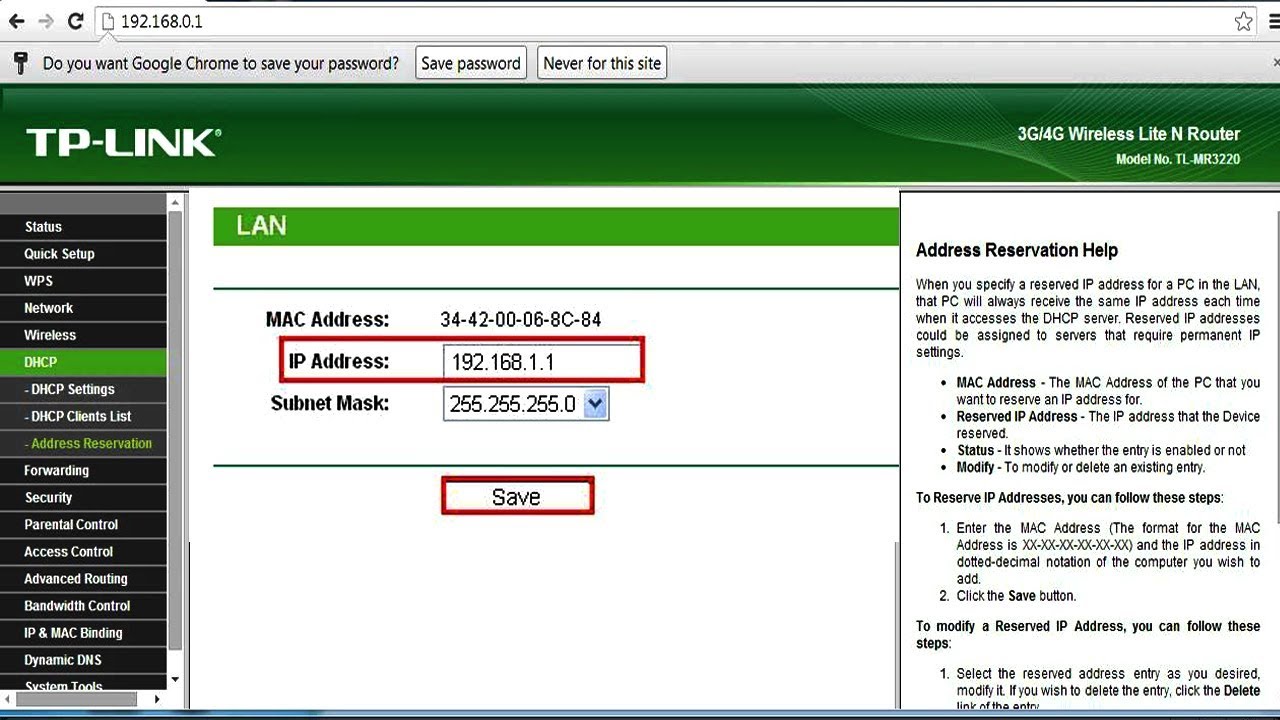
- Open a web browser and type the router's IP address (usually 192.168.0.1 or 192.168.1.1).
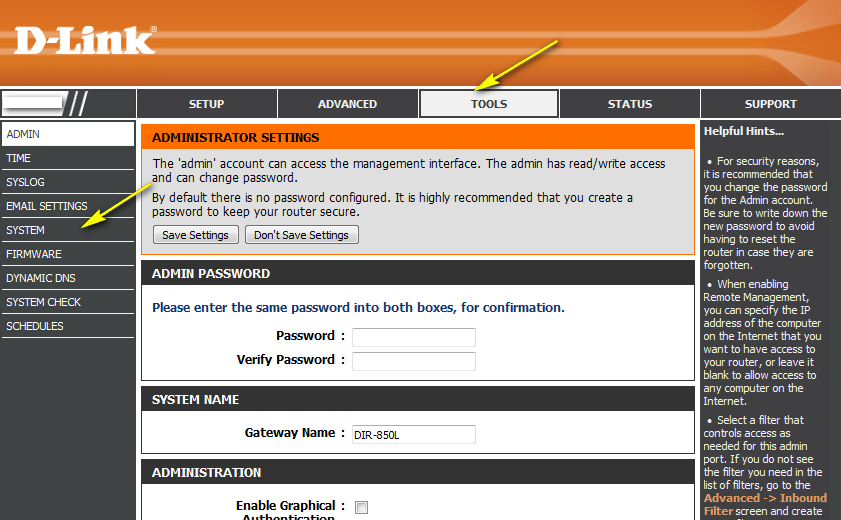
- Enter the admin username and password. The default username is admin (all lower case) and the default password is blank (nothing).
Step 2: Access the QoS Engine settings
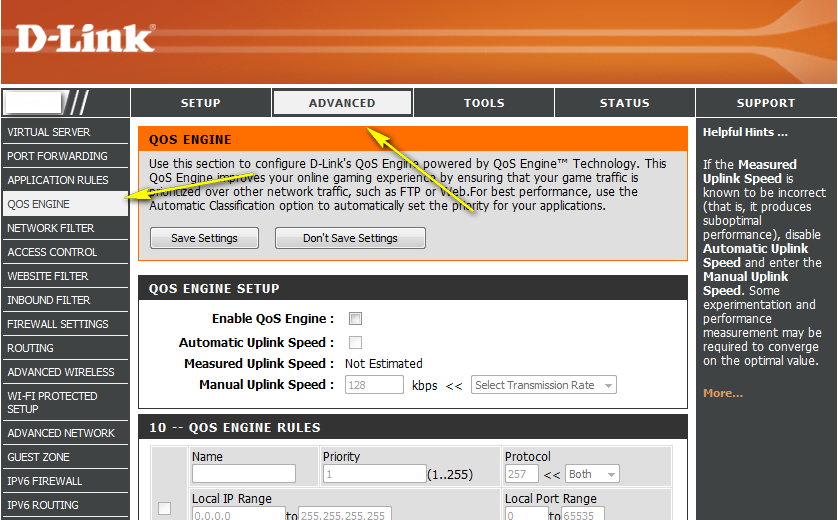
- Click the Advanced tab on top and then click QoS Engine on the left side.
- Ensure the Enable QoS Engine box is checked.
Step 3: Set Up QoS Engine Rules
- Under the QoS Engine Rule section, click on the + button to add a new rule.
- Select the type of device that will be subject to the QoS rule (e.g., computer, phone, tablet, etc.).
- Choose the priority level you want to assign to the device.
Step 4: Prioritize Devices Using QoS Engine
- Drag and drop the device card from the Connected Clients list to an empty slot to assign a priority level to a device.
- Release the mouse button to save the changes.
- Click the Advanced tab on top and then click QoS Engine on the left side.
- Ensure the Enable QoS Engine box is checked.
Step 3: Set Up QoS Engine Rules
- Under the QoS Engine Rule section, click on the + button to add a new rule.
- Select the type of device that will be subject to the QoS rule (e.g., computer, phone, tablet, etc.).
- Choose the priority level you want to assign to the device.
Step 4: Prioritize Devices Using QoS Engine
- Drag and drop the device card from the Connected Clients list to an empty slot to assign a priority level to a device.
- Release the mouse button to save the changes.
- Drag and drop the device card from the Connected Clients list to an empty slot to assign a priority level to a device.
- Release the mouse button to save the changes.