How to Set Up a Guest Network for Your Router
A guest network is a separate network for visitors that allows them to access the internet without accessing your personal devices. In this article, we'll show you how to set up a guest network for your router in just 2 easy steps.
Why Set Up a Guest Network?
Setting up a guest network is a great way to provide internet access to visitors while keeping your main network secure. This is especially important if you have IoT devices or smart home gadgets that you don't want to be accessed by guests.
Step 1: Log In to Your Router
To set up a guest network, you'll need to log in to your router's web interface. The steps to do this will vary depending on your router model, but most routers have a default IP address of 192.168.0.1 or 192.168.1.1. You'll also need to know your router's username and password, which are usually printed on the label or found in the documentation.
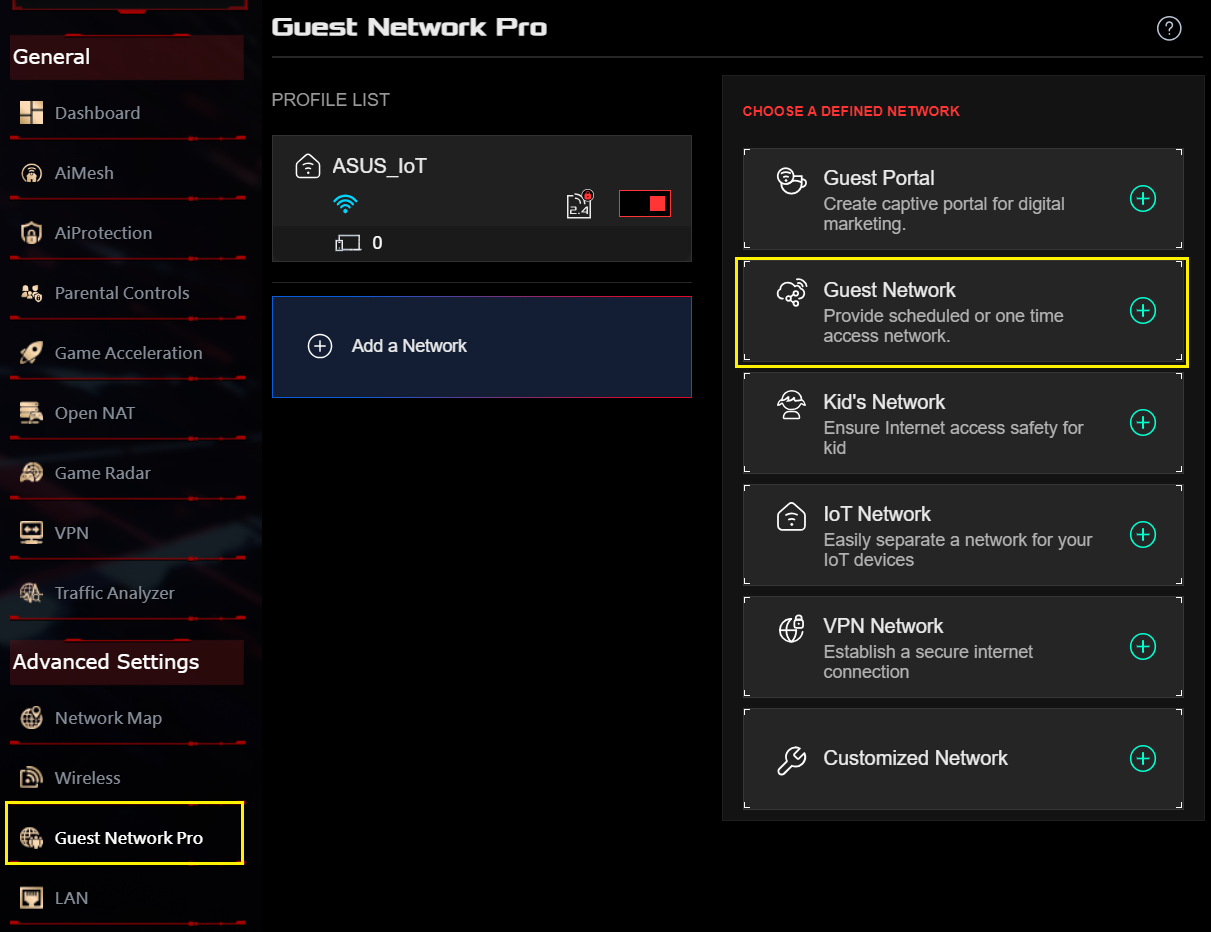
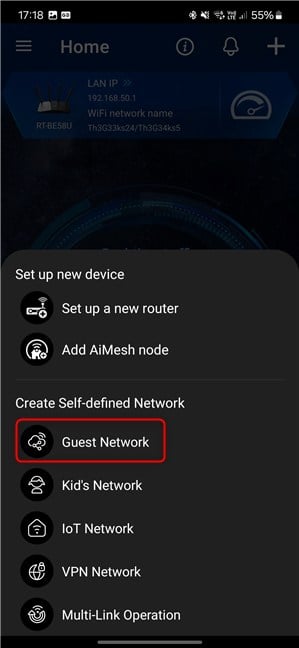
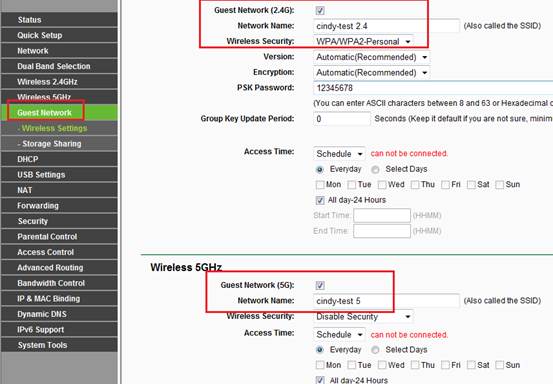
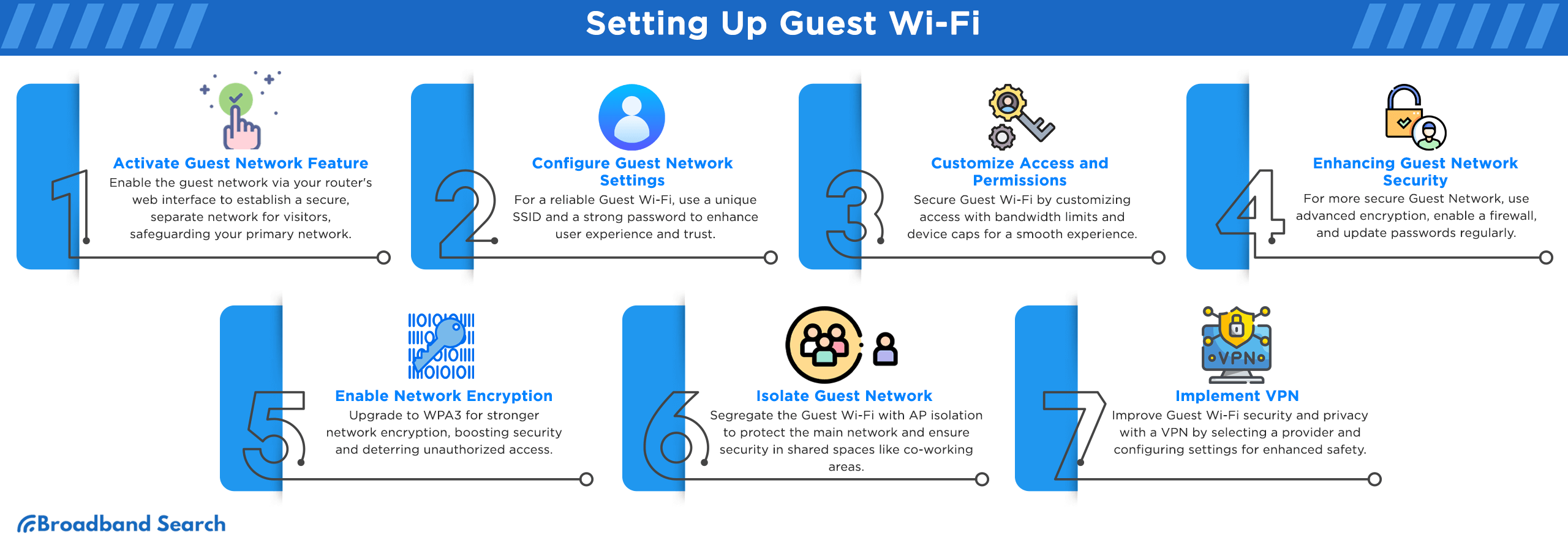
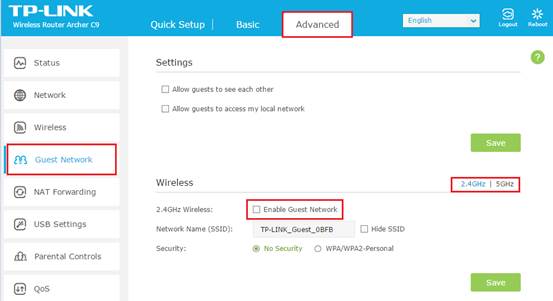
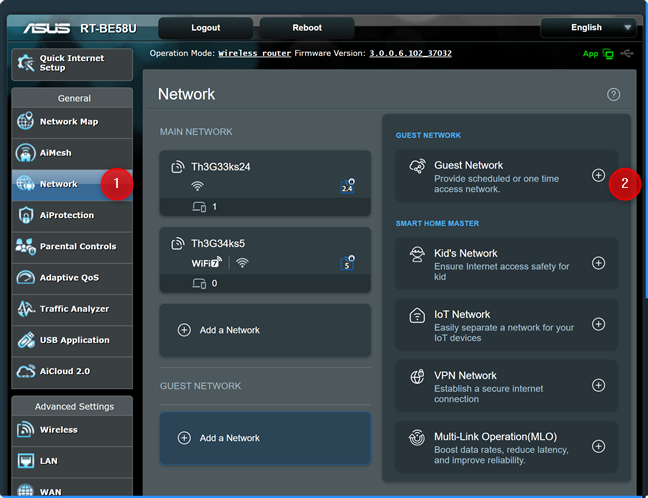
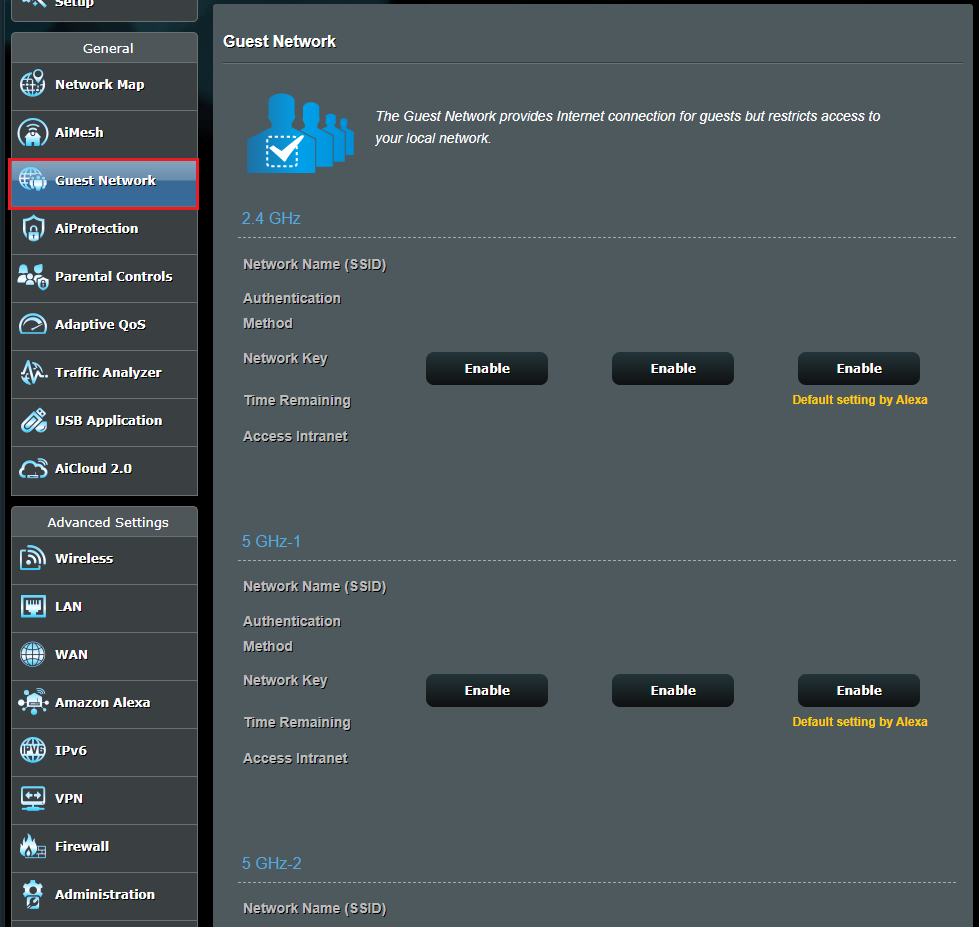
Once you've logged in, look for the guest network settings, which are usually found in the advanced or administration tab. You may need to click on a button or check a box to enable the guest network.
Step 2: Configure the Guest Network
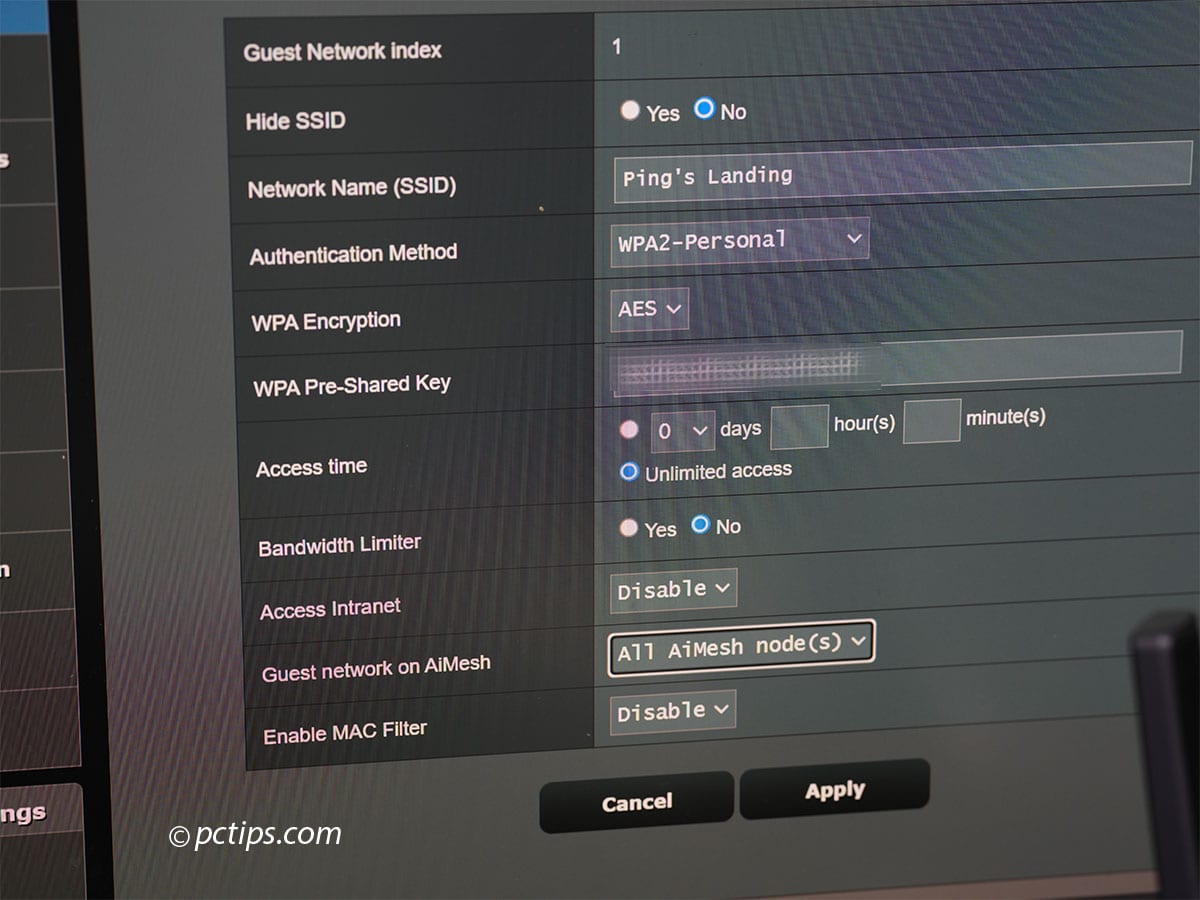
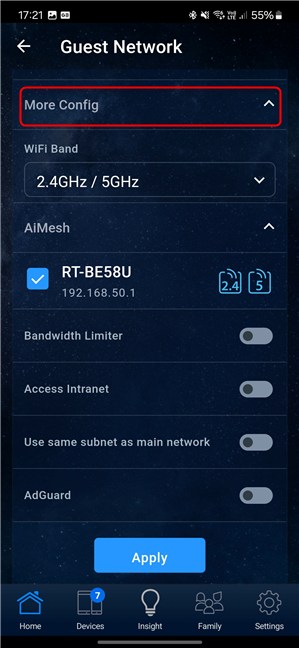
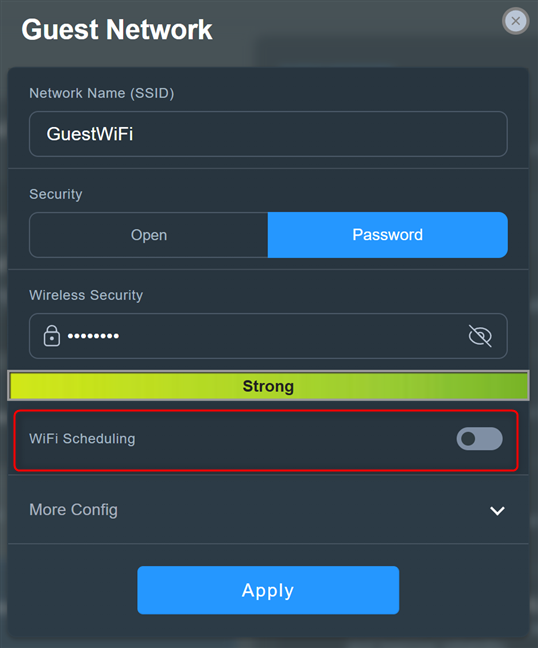
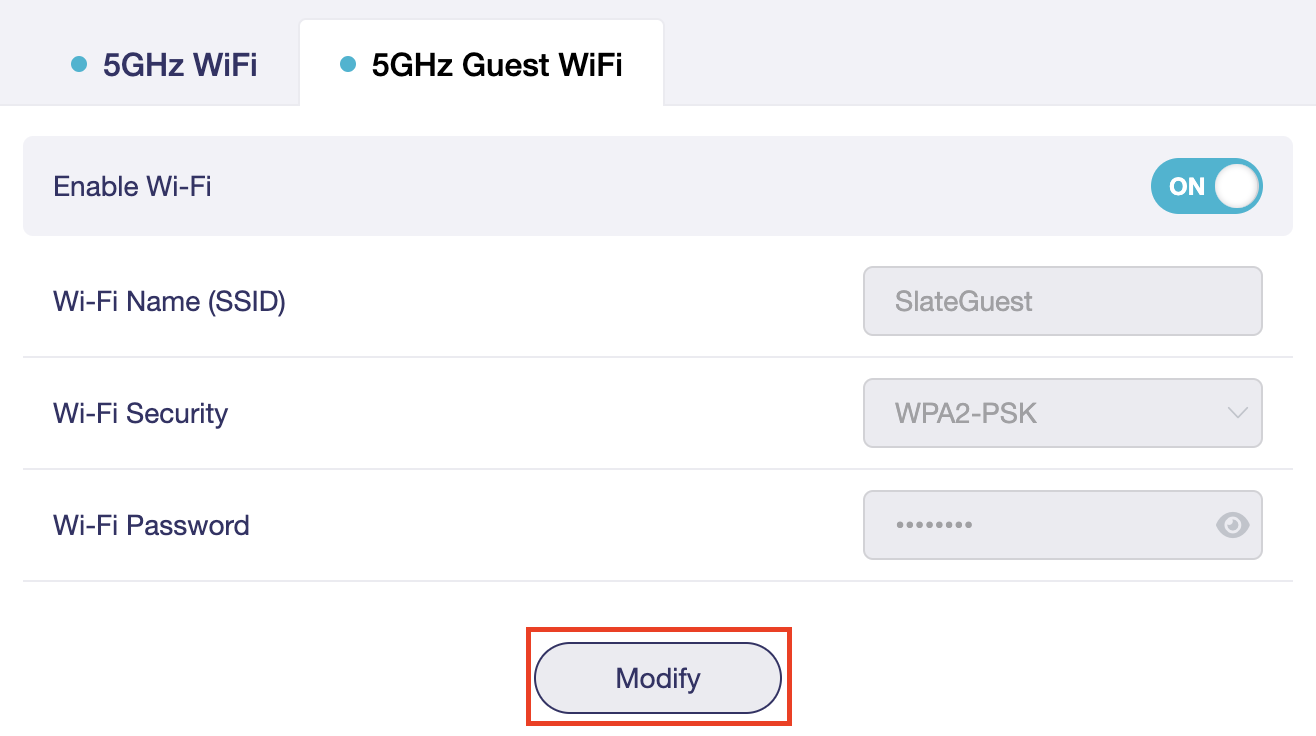
Once you've enabled the guest network, you'll need to configure it. This will typically involve setting up a separate network name (SSID) and password for the guest network. You may also want to limit the bandwidth and access for the guest network to prevent it from affecting your main network.
Some routers may also have additional settings for the guest network, such as the ability to isolate the guest network from your main network or to limit access to specific devices.
Tips and Tricks
- Make sure to change the default username and password on your router to keep your network secure.
- Use a strong password for the guest network to prevent unauthorized access.
- Consider setting up a separate router or access point for the guest network to keep it isolated from your main network.
- Use a VPN on devices that connect to the guest network to add an extra layer of security.
Conclusion
Setting up a guest network is a simple and effective way to provide internet access to visitors while keeping your main network secure. By following the steps outlined in this article, you can set up a guest network in no time. Remember to stay secure by changing your router's default password and using a strong password for the guest network.
Setting Up a Guest Network: FAQs
Q: What is a guest network?
A guest network is a separate network for visitors that allows them to access the internet without accessing your personal devices.
Q: Why do I need a guest network?
You need a guest network to provide internet access to visitors while keeping your main network secure. This is especially important if you have IoT devices or smart home gadgets that you don't want to be accessed by guests.
Q: How do I set up a guest network?
To set up a guest network, you'll need to log in to your router's web interface, enable the guest network, and configure it. The steps to do this will vary depending on your router model.
Q: Can I use a separate router or access point for the guest network?
Yes, you can use a separate router or access point for the guest network to keep it isolated from your main network.
Q: How do I secure my guest network?
To secure your guest network, use a strong password, change the default username and password on your router, and consider setting up a separate router or access point for the guest network.